Pet Grooming: Pet Card, Log and Appointments
The Pet Grooming module (called Tiersalon in German) is made for dog salons and similar businesses that groom animals: every pet has a pet card with the important details and a log that records visits and observations. Appointments are booked for the pet. At the end, the appointment becomes the visit with a report and a checkout – all inside DiKAS, with no second program and no index cards.
How to get the module: It is added to your existing plan and includes Reservations & Appointments – no second booking is needed, see Resources & Booking Calendar.
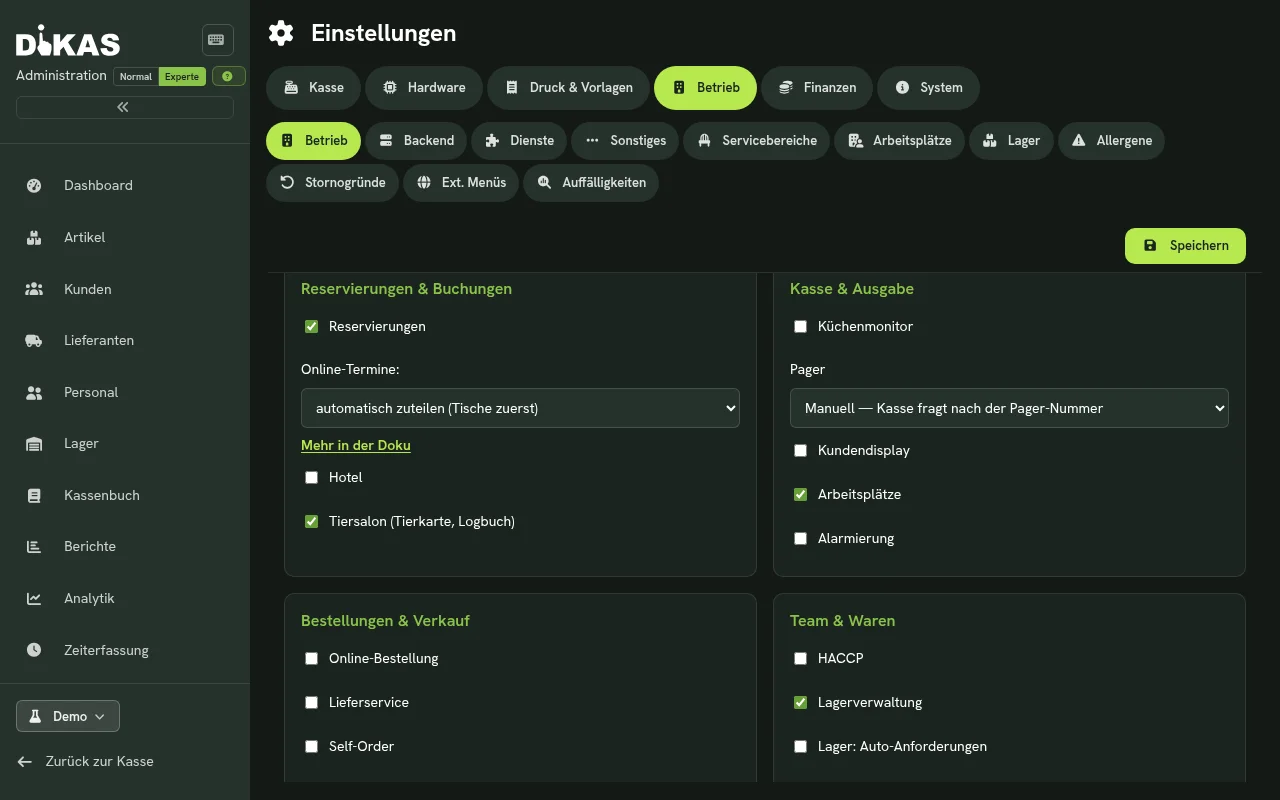
Activation: Admin → Settings → Operations → tab Operations → section Reservations & bookings → tick Pet grooming (pet card, log) and save. Without a licence the checkbox does not appear.
Where Pet Grooming runs
Pet card, log, pet appointments and the grooming forms belong to the full DiKAS server – in the cloud, on a DiKAS box or in the full Windows installation. They are available in the browser and at every till connected to that server. An Android single till that works with the server inside the device does not offer them.
Feature Overview
| Feature | Description |
|---|---|
| Pet card | Name, breed, birthday, sex, weight, coat, chip number, vet, vaccination valid until, allergies, behaviour notes, photo |
| Warnings | Behaviour, allergies and an expired or soon-to-expire vaccination appear as a banner at the top of the pet card, on the appointment tile and when the pet arrives |
| Log | Timeline per pet: visits, notes, notices, vaccinations, photos – with date and author; a mistake is put right with the Correction button |
| Appointment for a pet | Choose the pet, then service, time, duration and place; the duration is suggested, the appointment tile shows pet name, breed and service |
| Duration by breed | Table breed × service in the admin area; the appointment form suggests the duration from it |
| Online booking | Customers enter the pet, preferred day and time on the booking page; the salon adopts the pet with one click |
| Phone call | Find the caller, see their pets and book an appointment for a pet right away |
| New customer + pet | Walk-in customers without an appointment: customer and pet in one form, then Start grooming or Check out now |
| Prices & variants | Price and duration per size (small/medium/large by weight), additional services such as de-matting; online as a fixed price or a guide price |
| Week view | Seven days with pet tiles, filter per grooming table, move appointments by dragging or with a dialog |
| Rescheduling by the customer | Customers move their appointment via the link in the reminder e-mail (deadline adjustable, off by default) |
| Photo dialog | Camera in a dialog: self-timer, rotate and crop; in the “is done” window also several photos in a row and the before image as a ghost overlay |
| Visit day | “Arrived” shows the warnings, “Done & check out” records the visit and opens the till |
Setting Up
- Switch on reservations (Admin → Settings → Operations → Operations → section Reservations & bookings) and tick Pet grooming (pet card, log). We also recommend the business type Salon & Studio (terms for bookings): tables are then called “places” and reservations “appointments”, see Resources & Booking Calendar.
- Create the grooming tables as resources (Admin → Resources): each grooming table, the bathtub and the drying room as one resource each. When booking you later choose the place.
- Create services as articles (for example “Bath & blow-dry”, “Full groom”, “Nail trimming”) with a price and mark each one in the article as an Appointment service, see Setting Services and Duration. Care products such as shampoo are created as normal articles and sold at the till.
- Set the duration by breed (optional): if a miniature poodle should be given more time for “Full groom” than a pug, enter it in the Duration by breed table.
- Release online appointments: If customers should book themselves, tick Online buchbar (bookable online) on the resources, see Online appointments.
Setting Services and Duration
Appointment service on the article
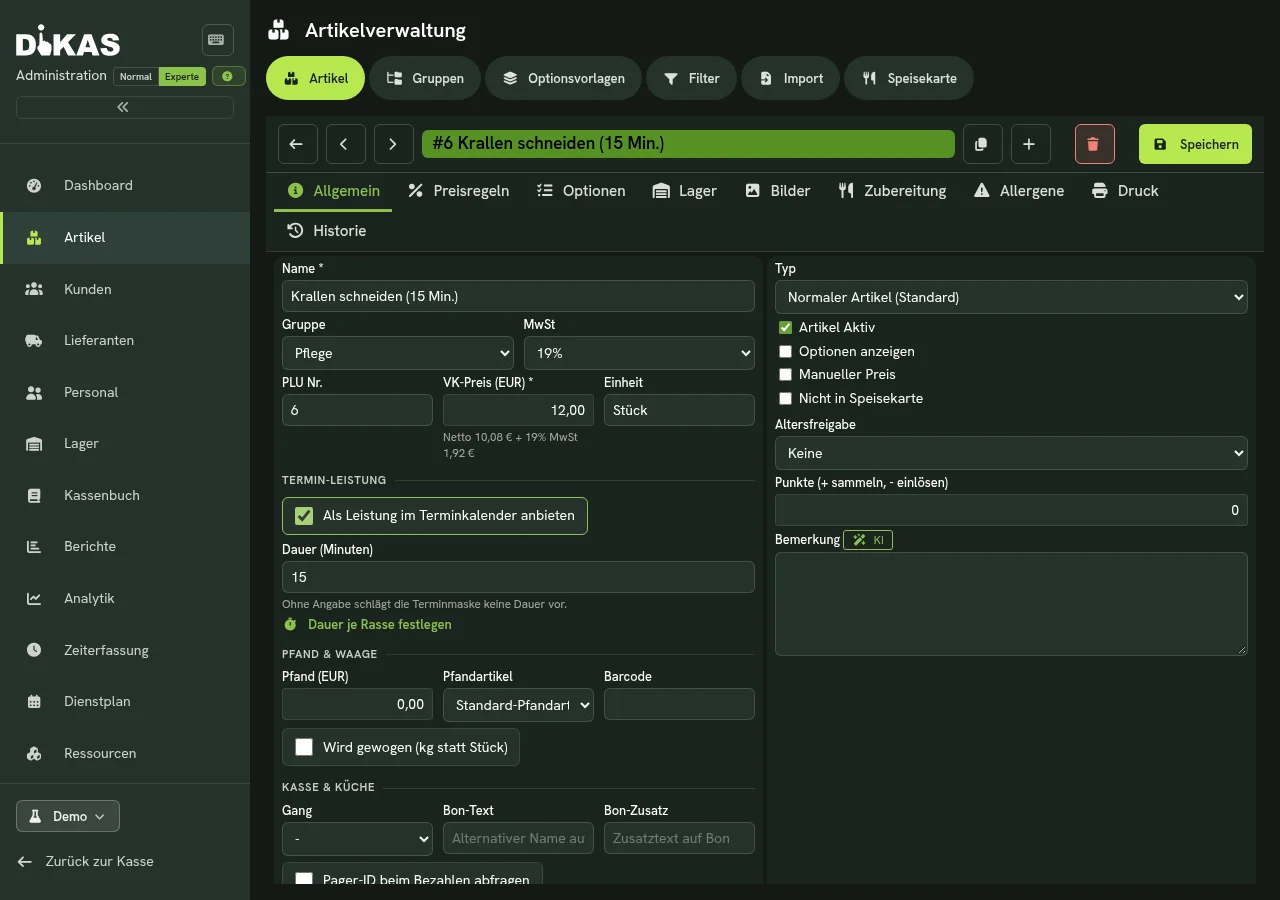
Which articles the appointment form offers as a service is decided by the article itself. Under Admin → Articles open the article, tab General. With Pet grooming switched on, it has a section Appointment service:
- Offer as a service in the appointment calendar – the checkbox makes the article selectable in the appointment form.
- Duration (minutes) – how long the service occupies the place. The appointment form suggests this duration when no duration is entered for the breed. Without a value it suggests no duration.
- Set duration by breed – opens the table, see below.
As soon as one article is marked, only marked articles count
As long as no article is marked, the appointment form shows all articles with a price. As soon as the first article is marked, it offers only the marked ones. So when switching over, mark all your grooming services at once.
Duration by Breed
Under Admin → Duration by breed (in the side menu between Resources and Reservations) the salon sets how long each breed needs for each service.
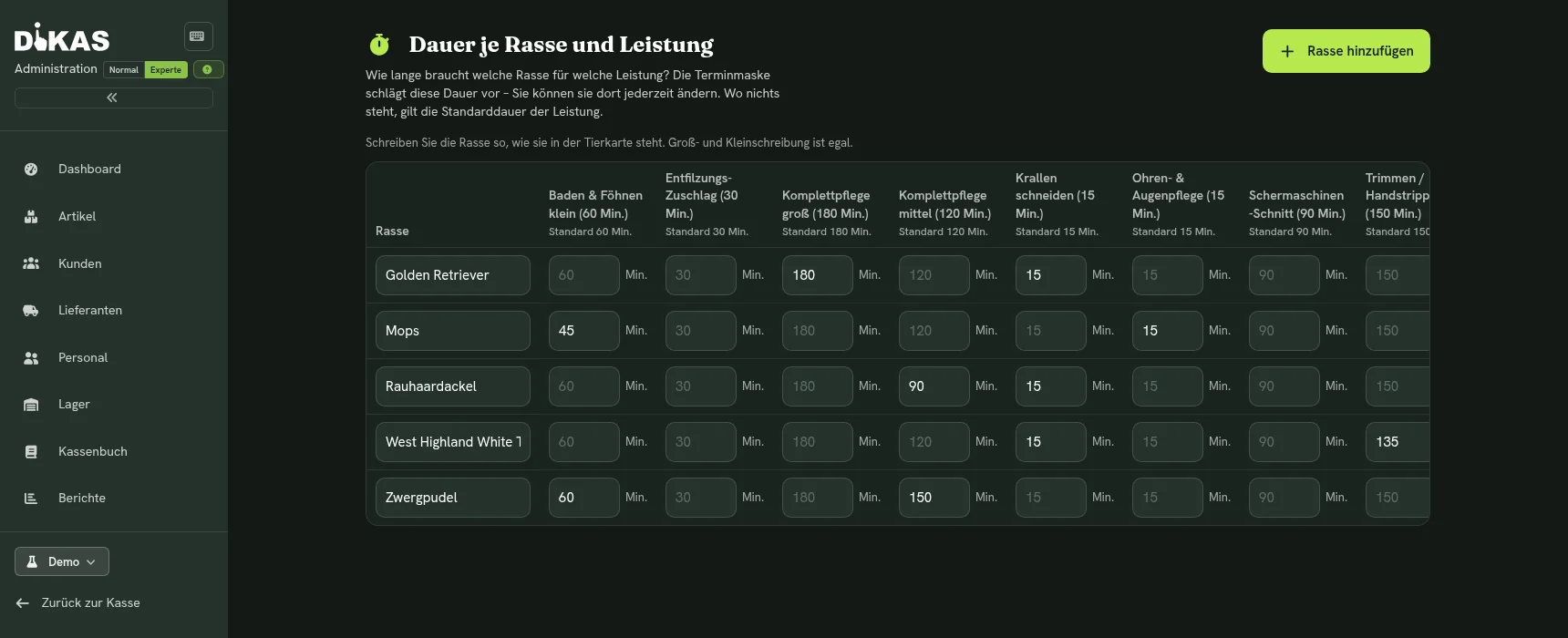
- Each row is a breed, each column an appointment service; the column header shows the service’s standard duration.
- An empty field means: no duration of its own, the standard duration applies (shown in grey in the field). Only filled-in fields are rules.
- Add breed creates a row, Remove breed deletes it. Write the breed the way it appears on the pet card; upper and lower case do not matter, but “Poodle (miniature)” does not match “Poodle”.
- Minutes are whole numbers from 1 to 1440, a breed may appear in one row only, and the table holds at most 500 entries. The form reports this before saving.
- Changes only apply after Save; Discard takes them back. Rules for a service that is no longer offered stay in a column of their own, Service no longer available.
- Only management (the administrator role) can change the table; everyone else sees the current state.
In the appointment form the table works like this: minutes entered for the breed and the service are suggested, otherwise the duration of the service, see Booking an Appointment for a Pet below.
Prices and Variants
Under Admin → Prices & variants you define what the same service costs for different pets and how long it takes. The form only appears with a Pet grooming licence and the switch turned on; only administrators may change it.
- Sizes: The size follows the pet’s weight. Default: small up to 10 kg, medium up to 25 kg, above that large. Both limits can be changed.
- Variants: For each grooming service you enter, for every size, its own duration and/or its own price. The two are independent of each other; whatever stays empty is taken from the service itself. With the tick Guide price the price of the variant is shown as an estimate.
- Additional services: Real articles such as “Nail care”, “Undercoat” or “De-matting per 15 min.” that customers can add online. A service “per unit” is always a guide price online.
This is how DiKAS calculates: the duration comes from the Breed × Service rule, otherwise from the variant of the size, otherwise from the service – plus the duration of the additional services. The price comes from the variant of the size, otherwise from the article; the breed never determines the price. If the weight is missing, DiKAS shows the lowest price as a “from” guide price.
The Pet Card
Pets always belong to a customer. Open the customer under Admin → Customers and choose the Pets tab. Each pet appears as a tile with photo, name, breed, age and – if there is something to watch out for – a warning symbol.
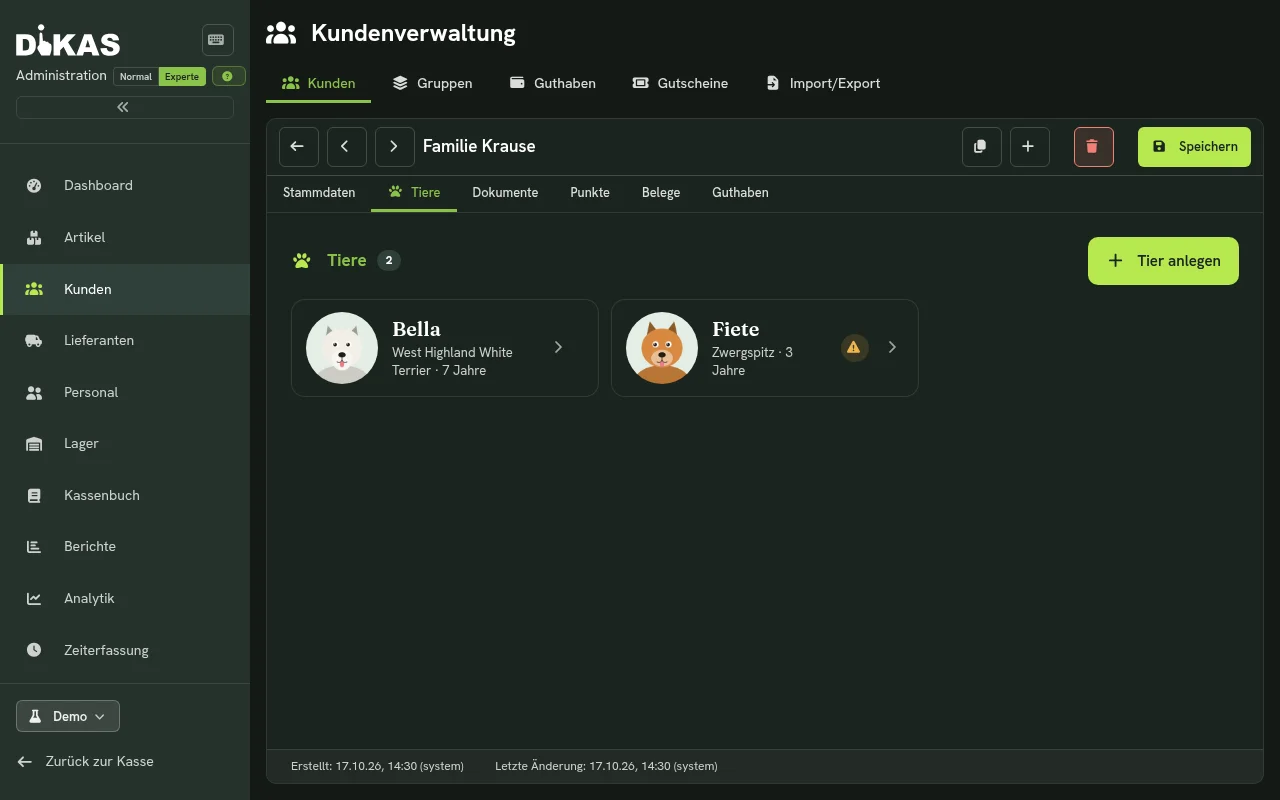
Add pet adds another pet. Only the name is required; the remaining fields are under More details. The more the card contains, the more useful it is later. Clicking a tile opens the pet card, Edit changes the details. The photo is taken with the camera symbol on the picture or chosen from a file.
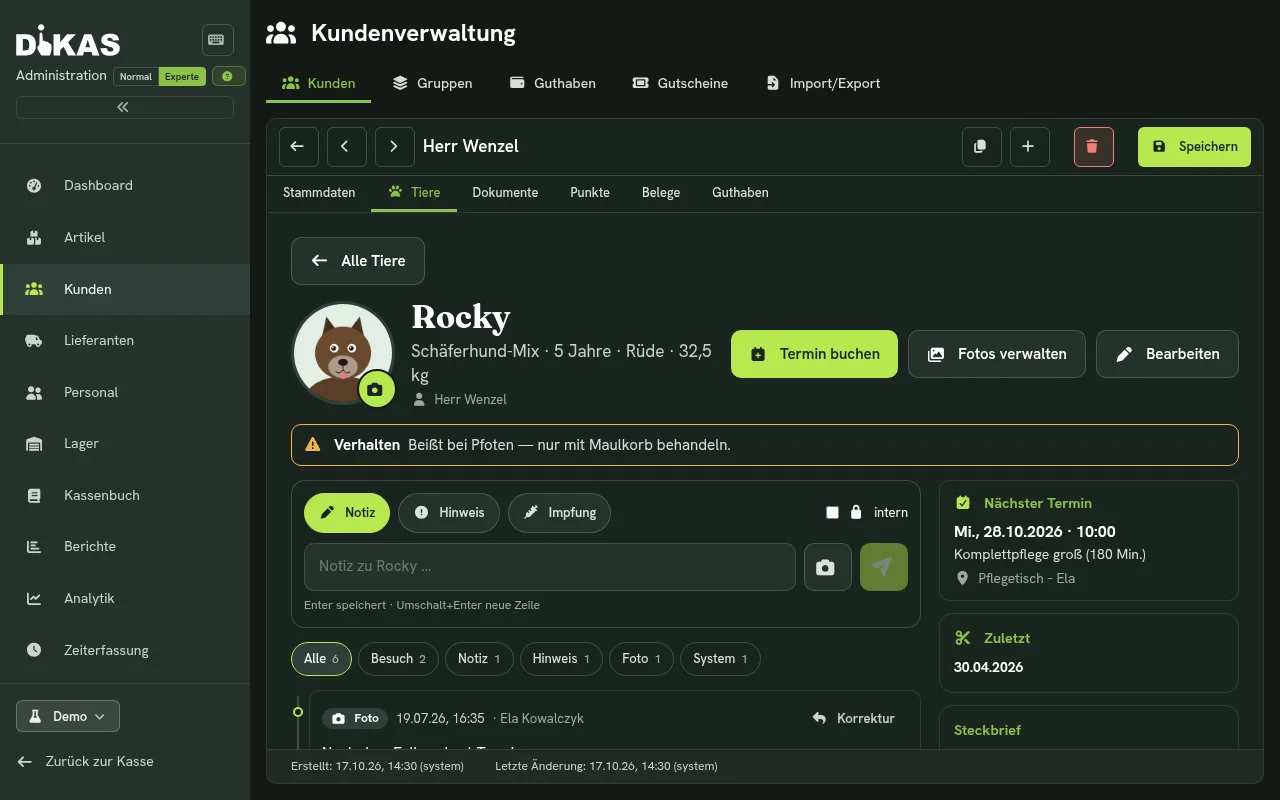
The warning banner sits at the top of the pet card. It shows one line per notice:
- Behaviour – for example “Bites at paws – treat with muzzle only”
- Allergy / medication
- Vaccination expired on … or Vaccination expires on … (30 days in advance)
Next to it you find the Next appointment, the date of the last visit and the Profile. Book appointment creates an appointment for this pet directly.
In the Status field of the pet card (Edit) a pet can be set to Inactive or Deceased. It can then no longer be booked, but its history stays readable.
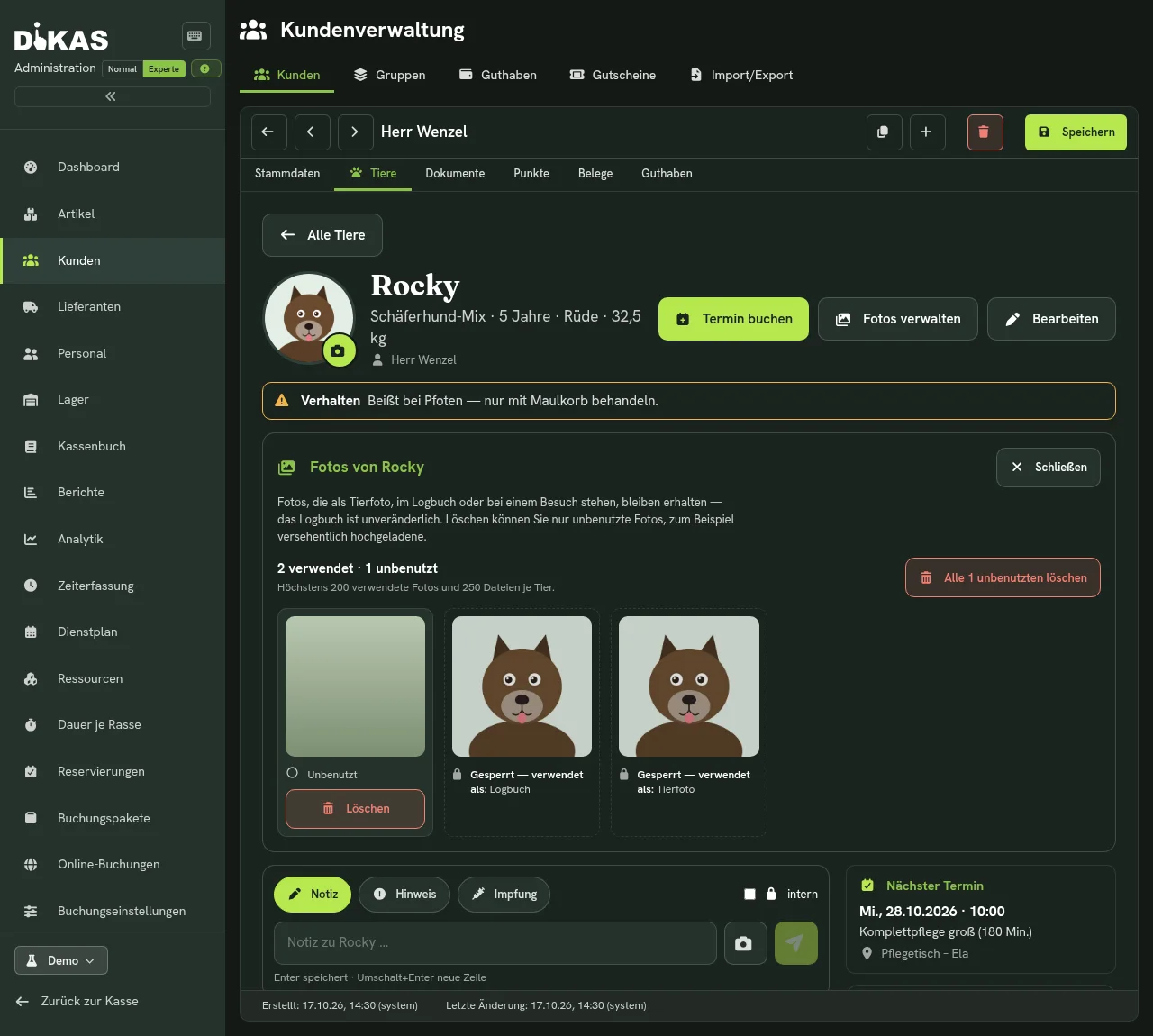
Manage photos: The button next to Book appointment and Edit shows all photos of the pet and states at the top how many are in use and how many are unused (“2 in use · 1 unused”). A photo used as the pet photo, in the log or at a visit is locked and names the reason – the log cannot be changed. Only unused photos can be deleted, for example ones uploaded by mistake: choose Delete on the photo and confirm with Yes, delete, or use Delete all n unused. Each pet can have at most 200 photos in use and 250 files; when the limit is reached, the message on upload points to Manage photos. The button requires the permission Edit customers.
Always fill in behaviour notes
The notes appear when the dog arrives and on the appointment tile. A substitute immediately sees what to watch out for.
Taking Photos with the Camera
Wherever a photo is captured (pet card, log, visit), the camera button opens a dialog of its own with a live image. Capture takes the photo, after which you can use it or retake it. The Choose a photo from a file button stays next to it. On phones and tablets the device’s own camera opens instead.
Behind the Options cogwheel you find the aids for everyday salon work. They are remembered per device:
| Function | Purpose |
|---|---|
| Self-timer | Off, 3 or 10 seconds with a visible counter – handy when both hands are on the dog |
| Torch, zoom | Only if the device’s camera offers them |
| Edit | Rotate the still image by 90° and crop it freely or to a square |
| Several photos | Only in the window “Name is done” (visit): take up to 6 photos in a row, for example before and after; the strip at the bottom shows how many more are possible |
| Show before image | Only in the window “Name is done”: places the first photo of the last visit – otherwise the pet photo – semi-transparently over the live image so the framing stays the same; the opacity can be adjusted |
If the browser or the app denies access to the camera, the dialog explains where to grant the permission; the photo from a file still works. Esc closes first the large view, then the self-timer, then the options and finally the dialog.
The Log
Below the warning banner is the pet’s timeline, newest entries first. The filters (All, Visit, Note, Notice, Photo, System) narrow it down.
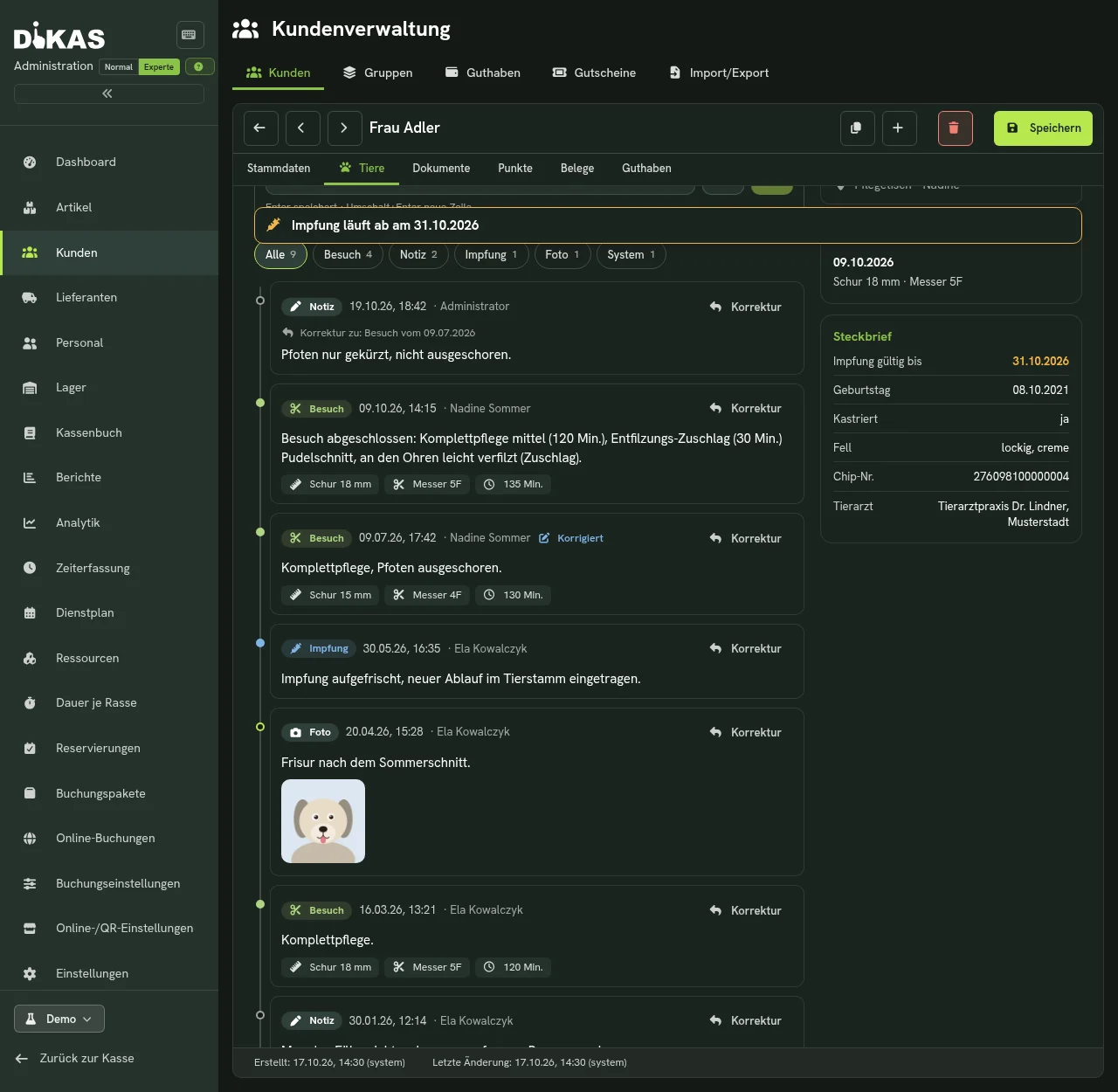
An entry is created in two ways:
- By hand: choose the type (Note, Notice or Vaccination), type the text into the field “Note about name …” and save with Enter (Shift+Enter starts a new line). The camera symbol attaches a photo, for example before and after. JPEG, PNG, GIF and WebP up to 10 MB are allowed; Manage photos removes unused photos again.
- Automatically: DiKAS makes entries itself when a pet is created, when its details change (name, breed, weight, vaccination date, allergies, behaviour, status), when an appointment is booked, moved or cancelled, when someone does not show up, a dog arrives, a visit is completed or an invoice is created. For a completed visit, duration, cut length and blade are part of the entry if they were recorded.
Entries cannot be changed. They can be neither edited nor deleted. A mistake is put right with the Correction button; the original entry stays. That keeps it traceable what was said and done when – for example if a dog has an injury after the appointment.
Correcting an Entry
- Choose Correction on the entry. A field What was wrong, what is right? (required) opens under the entry.
- Write the reason, for example “Paws were only shortened, not shaved.” Without text the correction cannot be saved.
- Save correction (or Enter) adds the correction as a new entry at the top of the log; Cancel or Esc discards it.
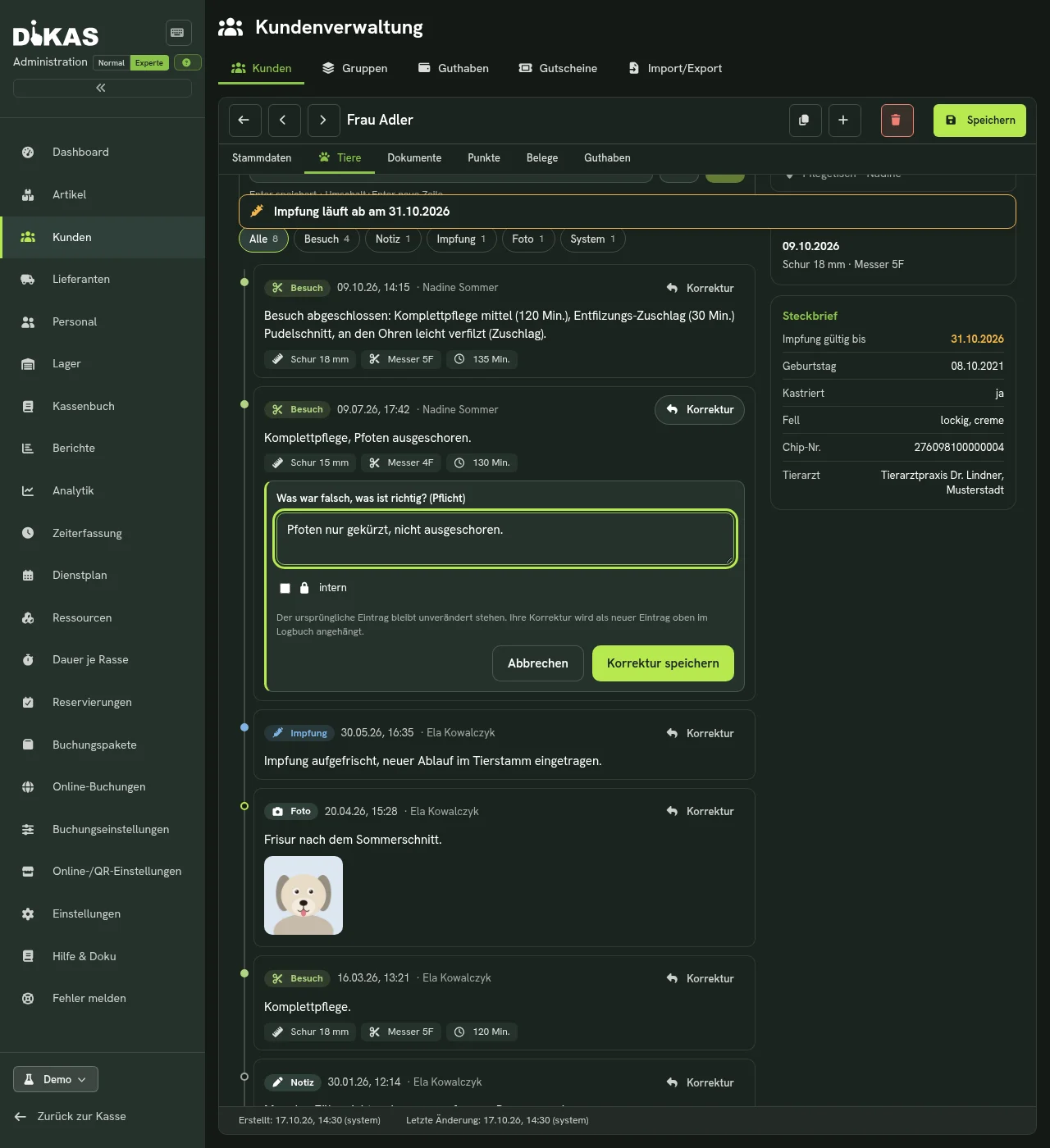
The correction states what it puts right (“Correction of: Visit from 09.07.2026”). The original entry stays unchanged and carries the label Corrected. System entries cannot be corrected.
Internal: Entries saved with the internal checkbox (lock symbol) can only be seen by users with the administrator role, for example for remarks about payment behaviour. The correction of an internal entry stays internal too (“This entry is internal — the correction stays internal too.”).
Booking an Appointment for a Pet
At the till or in the back office
- Open the pet card and choose Book appointment – customer and pet are already filled in. Alternatively, go to Appointments at the till, click New appointment, find the customer and tap the pet.
- Set Service, Date, Time and Duration. A suggestion appears below the duration: “Suggested: 45 min (breed × service)” when minutes are entered for the pet’s breed and the service in the Duration by Breed table, otherwise “(service duration)” with the duration stored on the article. If both are empty there is no suggestion. You can overwrite the duration at any time.
- Choose the place, for example a grooming table or the bathtub, and Save.
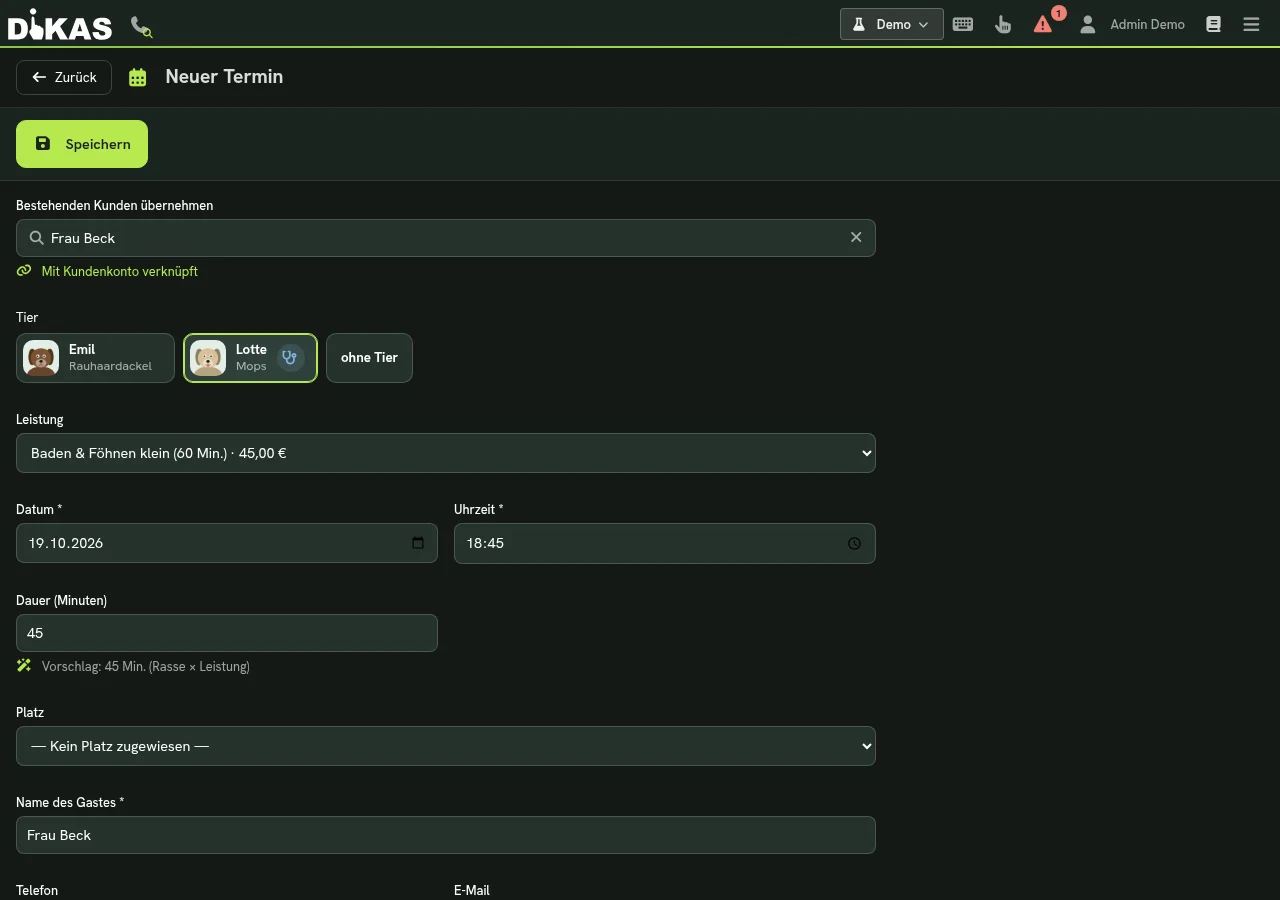
In the schedule, list and calendar the appointment tile shows pet name, breed, service and the warning symbol. An appointment can be moved or extended like any booking.
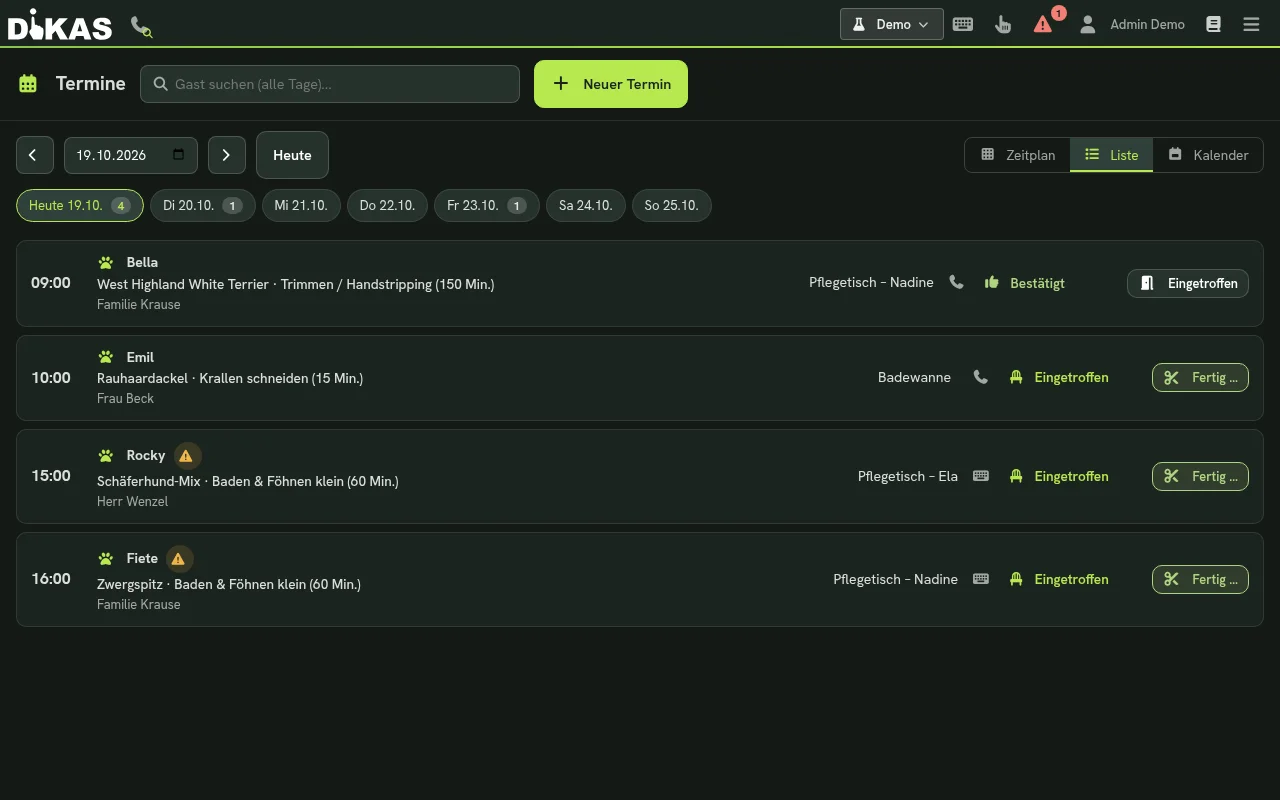
The services offered are the articles marked as Appointment service, see Setting Services and Duration.
An appointment can only be booked for a pet of the same customer. Deceased and inactive pets are shown disabled (“deceased – cannot be booked”). An appointment always covers one pet; if a family brings two dogs, two appointments are booked.
Week View
In the appointment form at the till the Week tab (and in Admin → Resources the Day/Week switch) shows the whole week. Each tile names the dog first, then owner, service and duration, the warning symbols (behaviour, allergy, vaccination) and the status (Pending, Confirmed, Arrived, Done). Simultaneous appointments stand side by side, never on top of each other. The Grooming table filter shows one table only. Breaks, blocks and conflicts are visible.
You move an appointment on a computer by dragging or with the dialog (on a tablet too). If the place is taken at the new time or the duration does not fit into the opening hours, DiKAS refuses the move and the appointment stays unchanged. On the phone the day list appears instead of the grid.
Online Booking by Customers
On the salon’s booking page (called Book a grooming appointment in the Salon & Studio business type) customers need no account. They enter in four steps:
- Your pet – only the name is required; breed, weight and “Good to know” (behaviour, allergies) are optional,
- the day,
- the time,
- the contact details (name, e-mail, phone, remark).
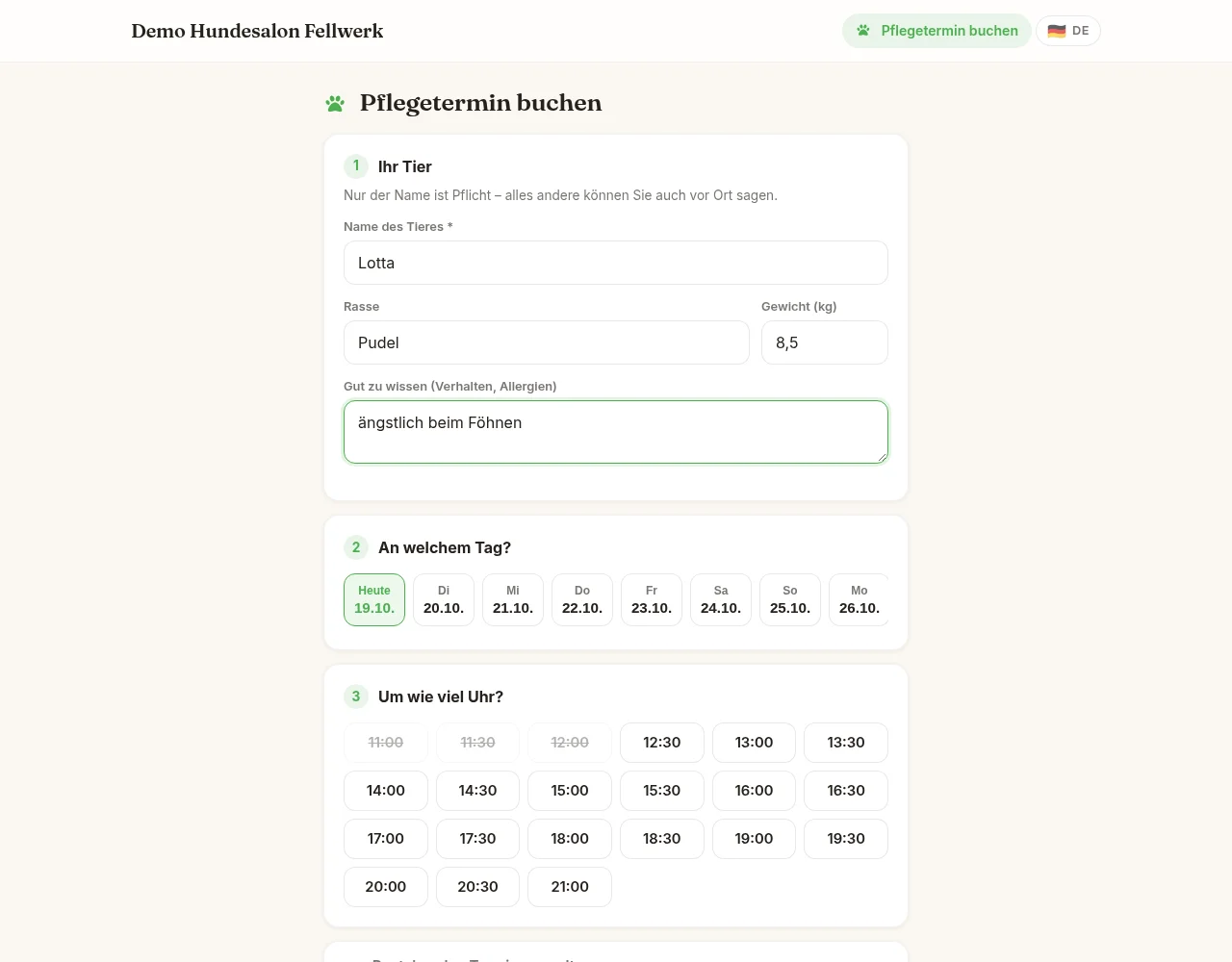
The appointment is then pending; the salon confirms it and the customer receives an e-mail. Customers never see existing pets on the booking page – they type in the details themselves each time.
Service, Price and Additional Services Online
If the salon offers services online (articles with Appointment service and a duration), the customer chooses the service after the pet details. Each card shows the duration and – with the pet’s weight – the price for exactly this pet, as a fixed price or as a guide price (“from …”). Additional services can be added; the total and the overall duration are shown below and in the confirmation. Times only appear after the choice and only where the whole duration fits into the opening hours. The server calculates duration and price again when booking – customers cannot change either. Without a weight the basic duration is reserved; the price is then a guide price. In the appointment at the till the commitment is shown (“Calculated online: … please confirm with the owner”).
Rescheduling an Appointment Yourself
The reminder e-mail contains a link. If a deadline “Rescheduling by the owner up to … hours before the appointment” is set under Admin → Settings → Operations → Reservation reminder (0 = off, as delivered), the page offers Move appointment: the customer picks the day and time from the free times. The same appointment moves – deposit, pet, service and duration are kept, and no cancellation is created. If the time has meanwhile been taken or the deadline has passed, the old appointment stays. The pet’s log records “Appointment moved: old → new”, and the reminder applies to the new appointment.
Adopting the Pet
In the appointment list an online request carries the label Pet details from guest. Two ways lead to the pet card:
- Adopt & confirm (button in the list): creates the pet for the customer and confirms the appointment in one click. The confirmation e-mail names the dog.
- Adopt pet (in the opened appointment): creates the pet but does not confirm anything by itself.
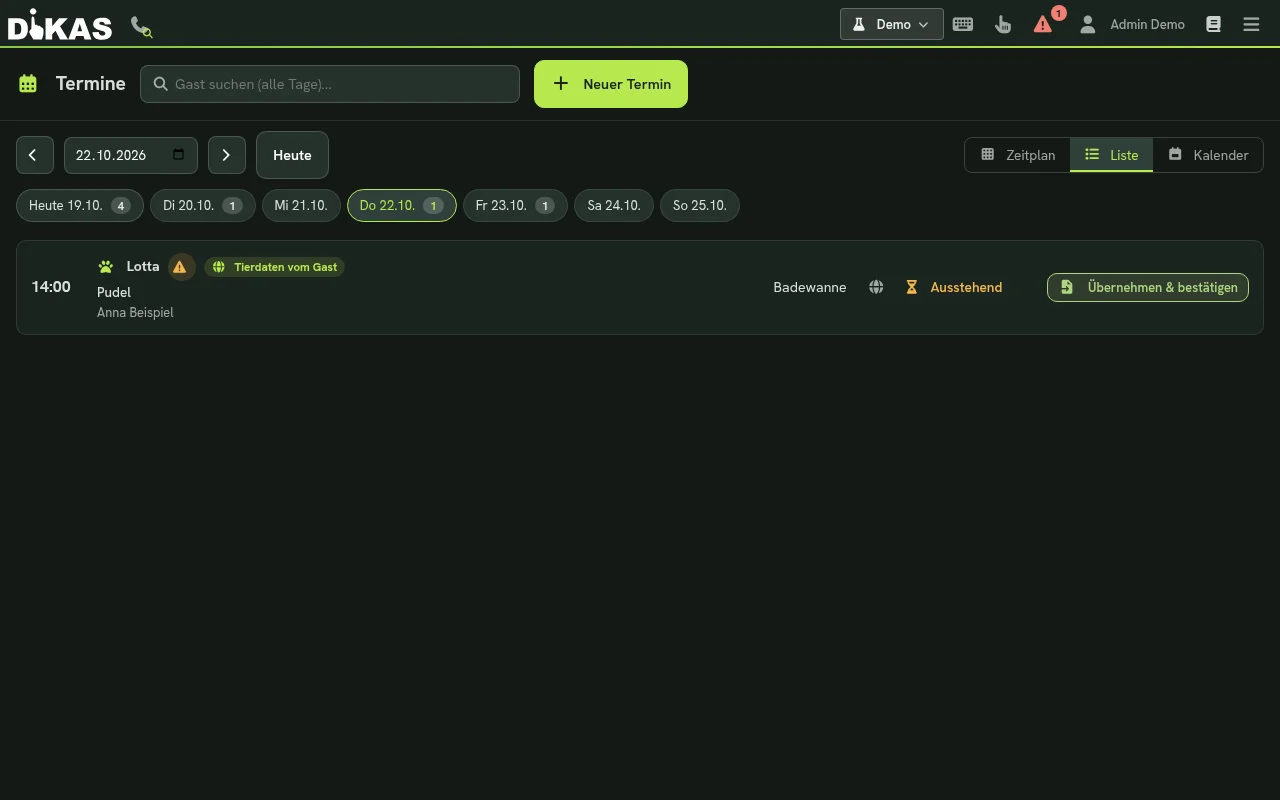
If the appointment does not belong to a customer yet, it is assigned to a customer with the same e-mail address or phone number – otherwise DiKAS creates one from the appointment details, or you pick the customer by hand. Only after adopting is there a pet card and log for this dog; before that, “Arrived” says: “First ‘Adopt pet’, then ‘Arrived’.” Adopting requires the permission Edit customers.
Phone Call: Customer, Pet, Appointment
When a customer calls, the telephone symbol with magnifier at the top of the till (“Find caller”) searches for the customer by phone number or name. The result shows the address and all active pets of the caller, each with a Appointment for … button; with two pets there is also Appointment for both – after saving the first appointment the form offers Next: appointment for … for the second pet. Customer card opens the master data. Several customers with the same number are offered for selection. For an unknown number, New customer creates the customer with the phone number prefilled – then add the pet and book the appointment right away.
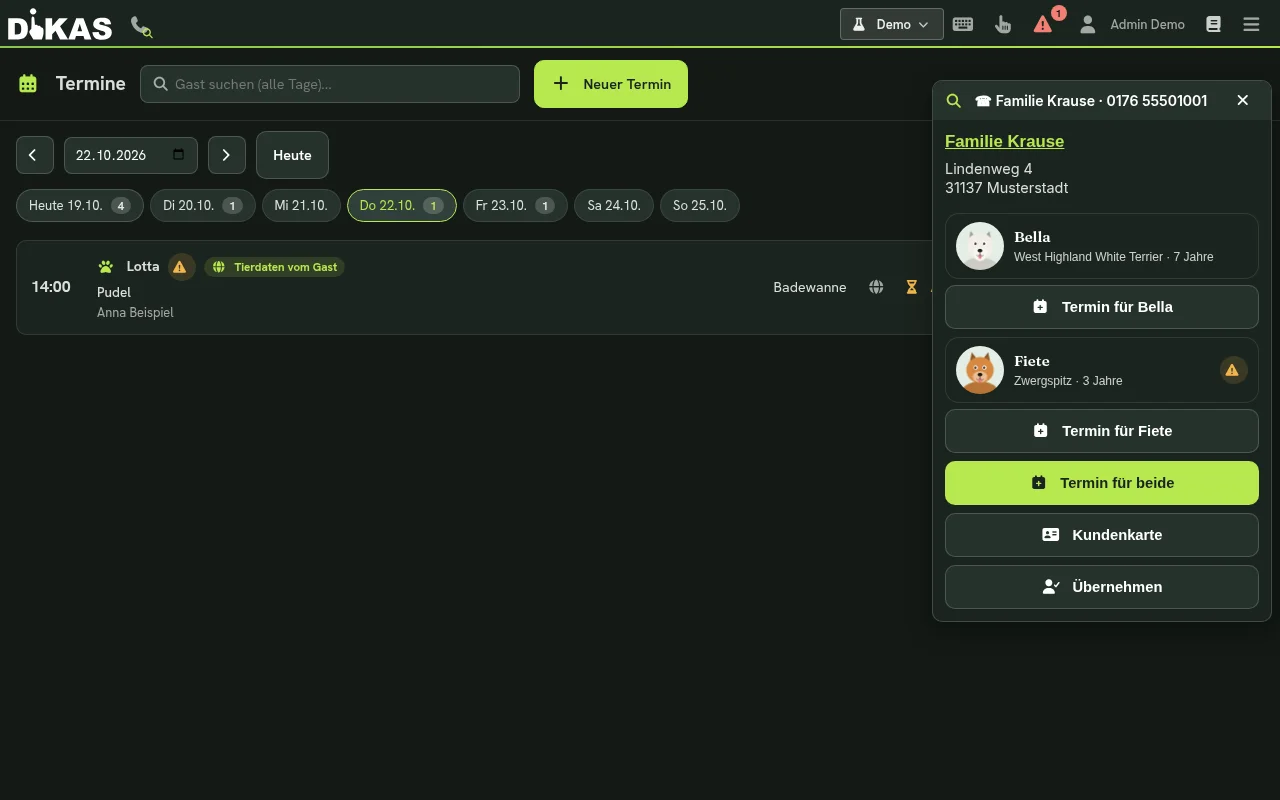
If caller recognition is set up (see Hardware), the same selection appears as soon as a call comes in.
Walk-in Customers: New Customer + Pet
When someone stands in the salon with a dog and no appointment, one form is enough: customer and pet are created and grooming can start right away.
Search first: At the very top is the customer search (name, phone or customer number). If there are several hits, you choose one – DiKAS never silently picks one for you. For an existing customer the customer card appears with Edit (phone, e-mail, address …; it is only saved if something was changed) and the customer’s pets as tiles to choose from; with New pet you add another one. If the search finds nobody, continue as described below; the search text is already filled in. A notice “Already exists” warns about duplicates.
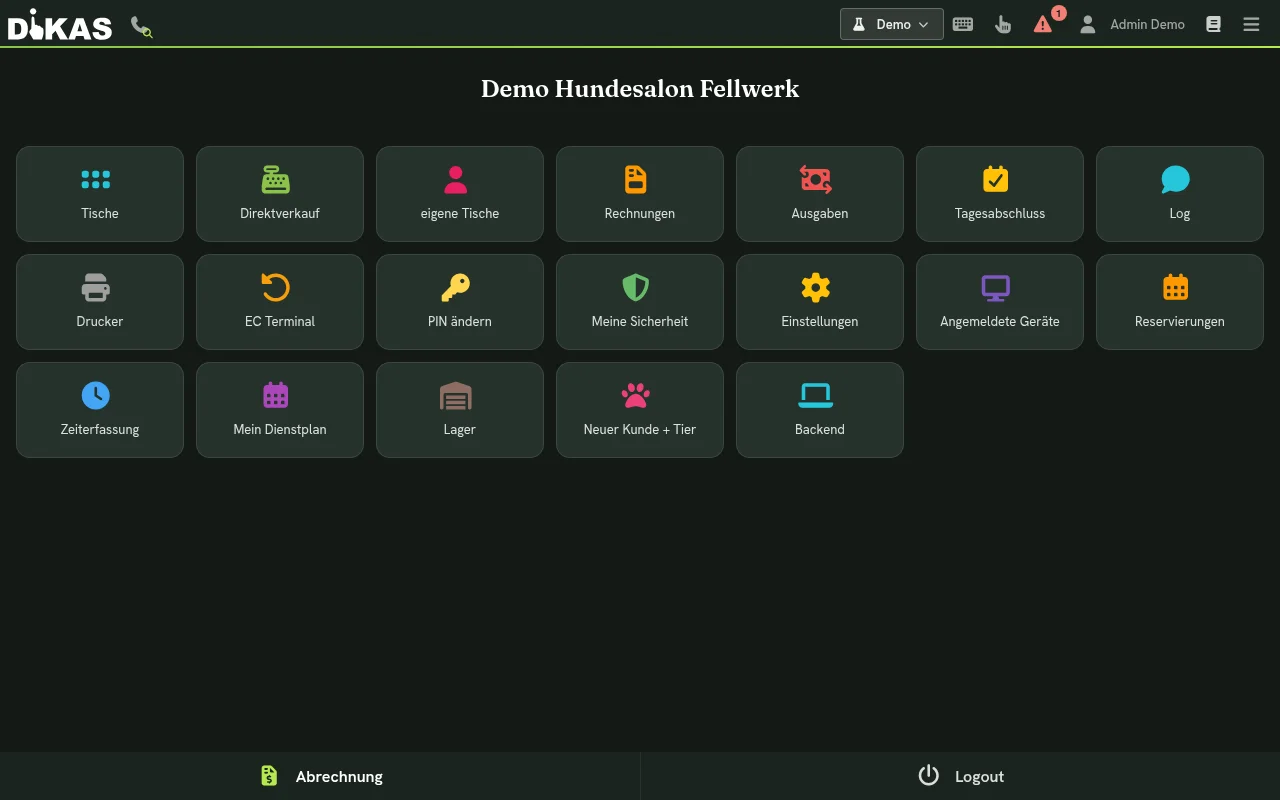
- At the till open the menu (menu symbol at the top right) and choose the tile New customer + pet. The tile only appears when Pet grooming is switched on and the user has the permission Edit customers.
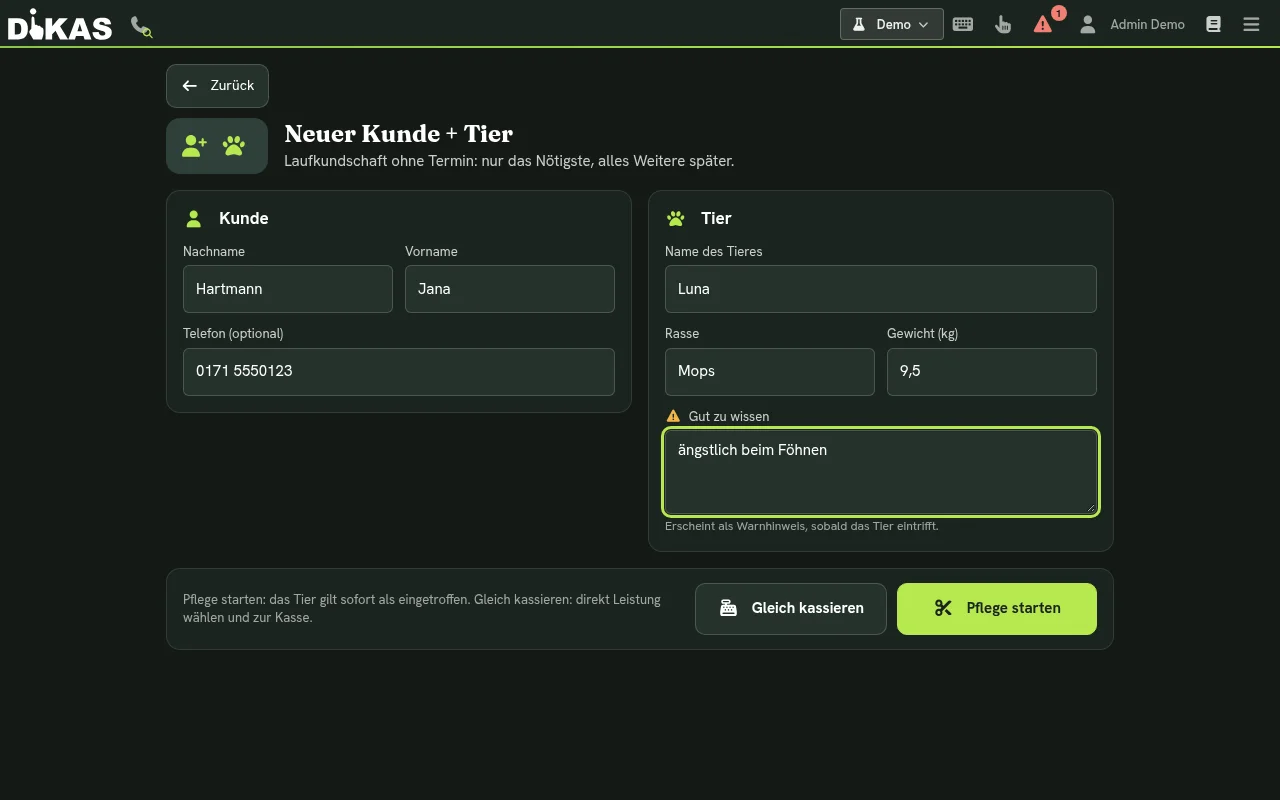
- On the left enter the customer: Last name or First name (one of the two is enough) and optionally the Phone. On the right the pet: Pet’s name (required), Breed, Weight (kg) and Good to know. The text under “Good to know” is shown as a warning as soon as the pet arrives.
- Then choose Start grooming or Check out now.
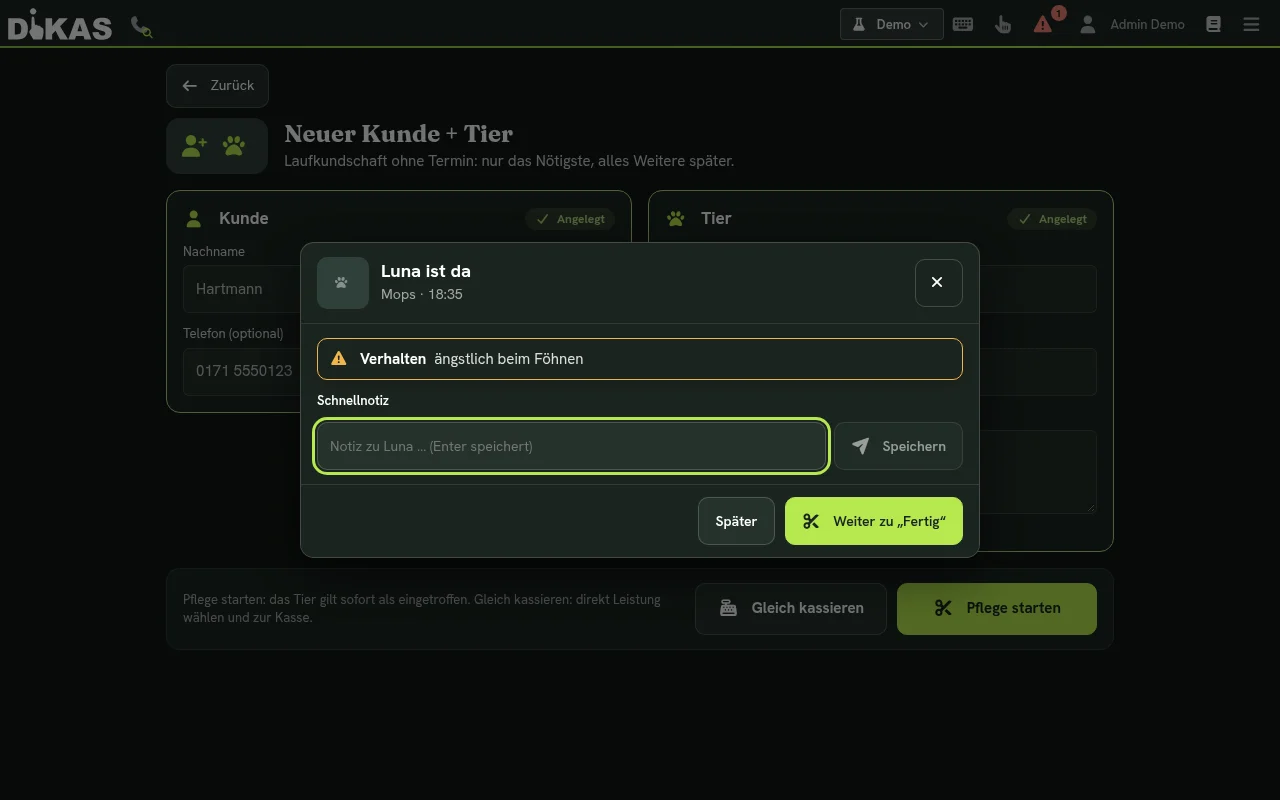
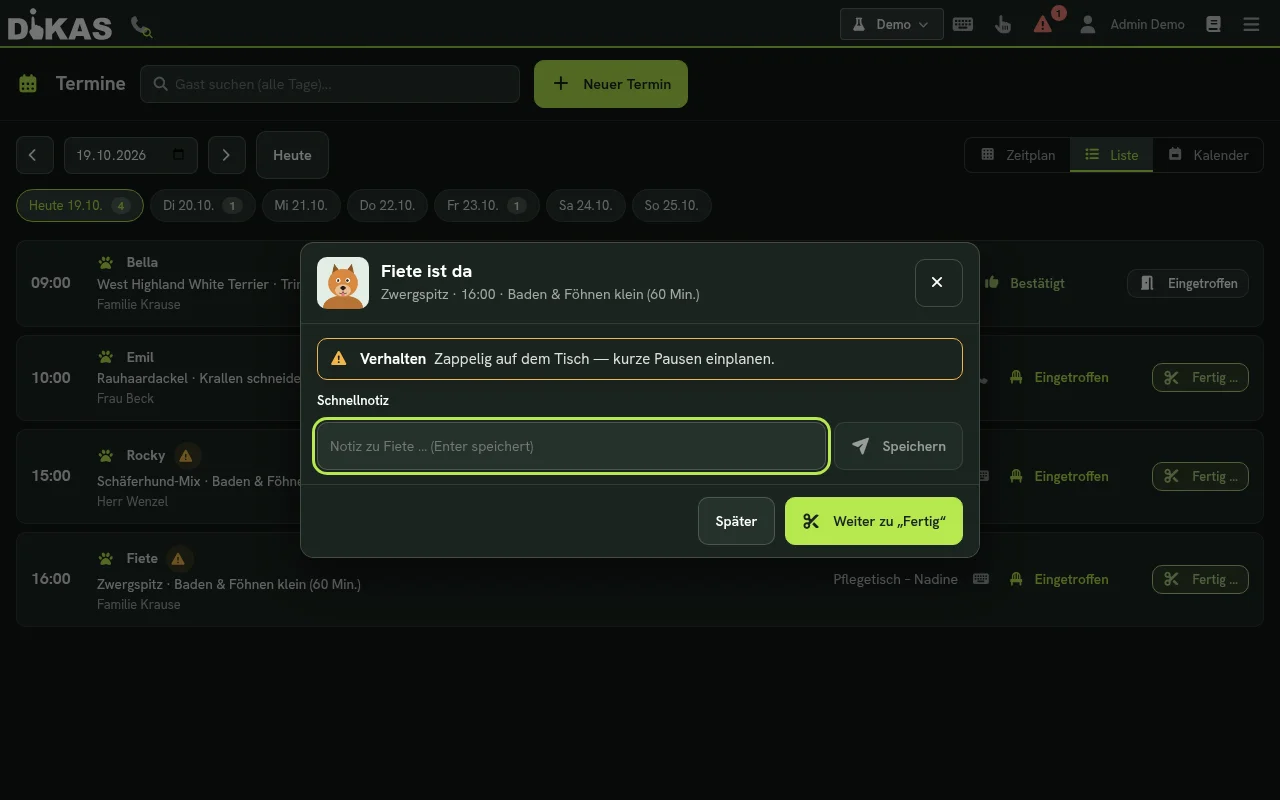
- Start grooming creates customer and pet, books an appointment “now” (60 minutes, no place) and sets it to Arrived. The window “Name has arrived” opens with the warning and the quick note. Later closes it, Continue to “Done” goes to the wrap-up. The appointment appears in the appointment list like any other.
- Check out now also creates customer, pet and appointment but opens the window “Name is done” right away: choose services, record cut length, report and photos, and go to the till with Done & check out, see The Visit Day below.
If a step fails, “That did not work. Please try again – anything already created is kept and will not be created twice.” appears. Finished steps carry the label Created; a second attempt creates nothing twice. If the Reservations & Appointments module is not switched on, there is only Create (customer and pet, no appointment) instead of the two buttons.
The tile is found in the till menu:
The Visit Day
- When the pet arrives, tap Arrived in the appointment list. The window “Name has arrived” shows the dog’s warnings – or “No warnings for name” – and offers a quick note (Enter saves). Later closes the window, Continue to “Done” goes straight to the wrap-up.
- During grooming, record notes and photos in the log as needed.
- At the end choose Done …. In the window “Name is done” you can adjust the services and record cut length (mm), blade, a report and up to 6 photos (for example before and after). The total is at the bottom.
- Done & check out creates the log entry Visit, completes the appointment and opens the till with the services. A paid deposit is credited as balance. Further articles such as shampoo can be added at the till before paying.
The report is meant for the salon: today it is not sent to the pet owner in any way, not even by e-mail.
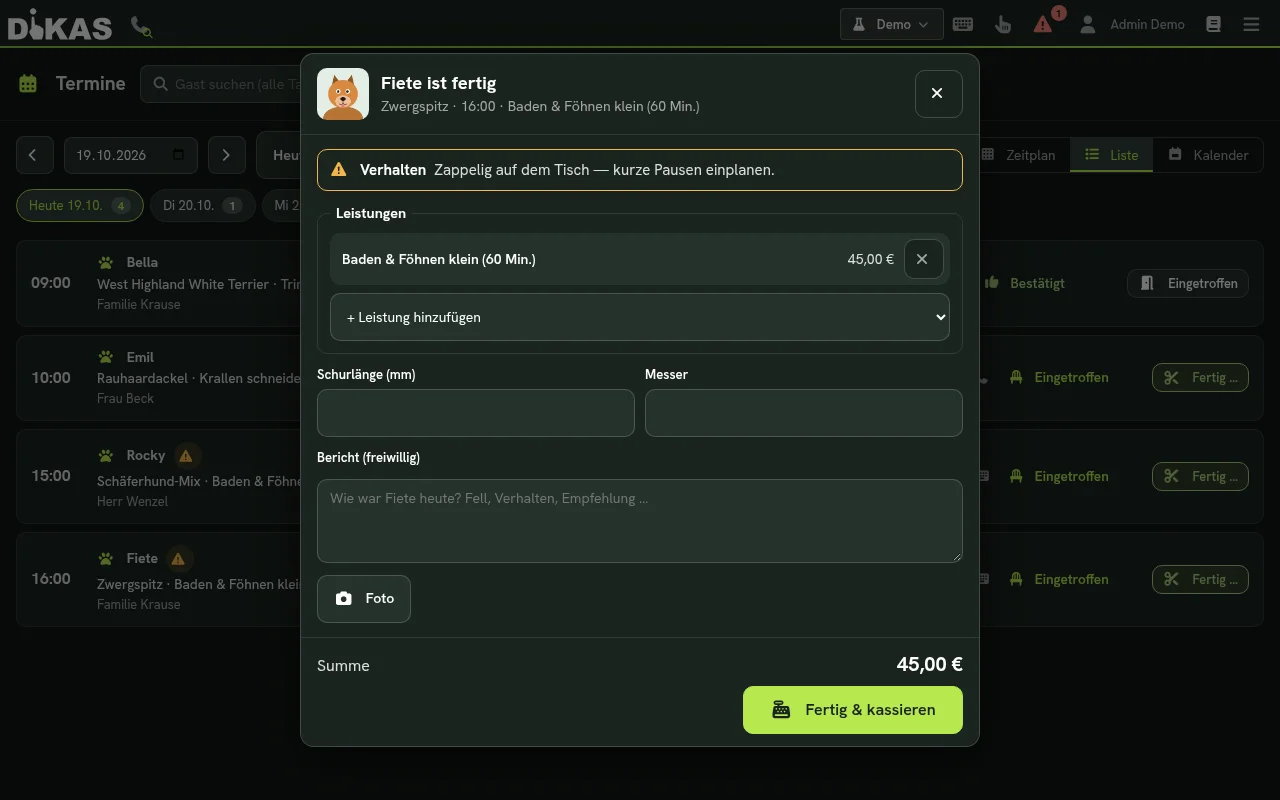
Quantity and price: The services from the online booking are pre-filled with the agreed price. For extra effort you set the quantity (for example “De-matting ×3”); choosing the same service twice raises the quantity. Only management and users with the permission “Discount/price change” may change the price, and DiKAS requires a reason, which appears in the log (“Price changed: old → new (reason)”). The agreed price and the quantity go onto the receipt; without a change, today’s article price applies.
Completing takes effect once: a second click creates no second entry and no second booking. “Done” requires the permission Edit customers.
Several pets of one customer on one receipt
If a customer brings two dogs, create a separate appointment for each dog on the same day (“Appointment for both” guides you through it). On the day, set both appointments to Arrived.
- For the first dog choose Done … and enter services, report and photo.
- If another dog of the same customer is still open, the window shows Done – next: name. The next dog's window opens; at the top you see what has already been captured and goes onto the same receipt.
- After the last dog the till opens with the services of all dogs on one receipt. Every line carries the dog's name as a note.
- To check out one dog on its own, choose Check out name only. The other dog stays open.
Each dog keeps its own log with visit and receipt (Customer → Pets → pet). Deposits of all dogs appear as credit on the customer account; the payment dialog deducts them.
Interruption: If you reload the page between dogs or switch device, visits that are already completed are not lost. The appointment list shows … waiting for the till next to the customer with the button Continue to till. It opens the till with all open visits on one receipt; if another device has paid in the meantime, DiKAS says “Already paid”. The note appears on the day of the appointment. The current article price applies.
Second device: On another device the note “waiting for the till” stays visible until the device that took the payment has linked the receipt to the visit – this takes seconds to minutes, longer if the network is down. Before Continue to till, briefly check whether the other device has already been paid on, otherwise the same visit is charged twice.
Data Protection
Pet card and log are part of the customer data.
- When a customer is deleted, their pets are anonymised: the name becomes “[gelöscht]”, behaviour and health details are emptied, the log texts and visit reports are made unreadable and the photos are deleted. The same applies to their appointments with a pet: pet name, online pet details and the guest’s details (name, phone, e-mail, free texts) are removed. Timestamps, prices, deposits and invoices are kept – they must be retained. Appointments without a pet (for example restaurant or course) are not touched.
- Nightly follow-up: Every night (around 03:50 local time) DiKAS checks whether deleted customers still have Pet Grooming data in plain text – for example after a late synchronisation – and anonymises it again.
- Online guests without a customer: Appointments that were never assigned to a customer keep the guest’s details for at most 90 days after the appointment. After that name, contact, free texts and pet details are removed; deposit, receipt and number stay.
- The visit report is not sent to pet owners.
- Log entries marked “internal” can only be seen by administrators.
Frequently Asked Questions
Can I change or delete a log entry? No. Correction on the entry and a reason add a new entry; the old one stays and carries the label Corrected.
The dog has died – what happens to the card? Set the pet to Deceased in the pet card (Edit). It can no longer be booked, the card stays readable.
The “Pets” tab is missing on the customer. The module must be licensed and the checkbox Pet grooming (pet card, log) must be ticked in the operations settings.
Why can’t I book an appointment for this pet? The pet is inactive or deceased, or it belongs to another customer.
Where do I see that a vaccination is about to expire? In the warning banner of the pet card and as a warning symbol on the tile and the appointment. The date is in the profile.
“Arrived” shows “First adopt pet”. The appointment comes from online booking and has no pet card yet. First Adopt pet or Adopt & confirm, then Arrived.
A dog is at the door without an appointment – what do I do? Choose New customer + pet in the till menu, enter customer and pet and tap Start grooming (or Check out now).
The appointment form does not show my grooming service. As soon as one article is marked as an Appointment service, the appointment form offers only marked articles. In the article (tab General, section Appointment service) tick Offer as a service in the appointment calendar.
The appointment form does not suggest the duration I entered for the breed. The breed in the Duration by breed table must be written the way it appears on the pet card (upper and lower case do not matter). If it is written differently, the duration of the service applies.
I cannot add another photo. Each pet can have at most 200 photos in use and 250 files. Delete unused photos under Manage photos in the pet card.
How do I book an appointment for two dogs? It takes two appointments. The quickest way is Find caller and Appointment for both: after saving the first appointment, DiKAS offers Next: appointment for ….