Ordering and Goods Receipt
For whom: office staff and owner · Where: Admin → Stock → Purchase orders tab and Admin → Suppliers
From demand to booked delivery in four steps: maintain suppliers, generate an order proposal, send the order, accept the goods — including partial deliveries.
Prerequisite
For the order proposal, the articles need a supplier with pack (Articles with stock tracking) and a min/target rule in the main stock (Setting up stock) — or you calculate by consumption (see below).
The buttons New purchase order, Order proposal and Event demand as well as all write actions of this chapter appear for employees with the permission Orders (Admin → Staff → Employees → Permissions, section Stock; see Permissions). With the Merchandise Management module, order number, shipping cost, internal note and tax per line are added — that is described in Ordering.
Beträge und Steuersätze in den Beispielen
Alle Beispielbeträge sind Euro-Beträge. Einkaufspreise führt das Lager grundsätzlich netto; die Steuersätze in den Beispielen sind 19 % (Normalsatz) und 7 % (ermäßigter Satz).
1. Maintain suppliers
Admin → Suppliers
The list shows name, city, phone and e-mail; the search field "Search (name, city, customer number)…" filters, and the counter is shown to its right (e.g. "12 suppliers"). Inactive suppliers are labelled inactive.
"New supplier" opens the detail form. It is divided into tabs:
| Tab | Content |
|---|---|
| Master data | Name (required field), Addition, street, ZIP code, city, Country, phone, Email (the recipient for orders), fax, web, Customer number (your number at the supplier), Notes and the tick Active — switched off, the supplier disappears from the selection |
| Terms | Minimum order value (shown as a note in the order editor and in the order proposal) and Lead time (days) (the basis for the "by consumption" calculation). With the Merchandise Management module also payment term, early payment discount, Free shipping from, Freight per order and Small-order surcharge (see Tier prices and freight) |
| Bank details, Accounting | IBAN/BIC, default category (pre-assignment) and creditor account |
| Assigned articles | appears as soon as the supplier is saved: pack, factor, cost per pack and supplier article number. This assignment is maintained on the article (Stock tab, section Suppliers & packs) and only displayed here for overview |
| Receipts | the receipts of this supplier |
Clearing number fields
An entered minimum order value, lead time, payment term, early payment discount, free-shipping threshold, freight, small-order surcharge or rating can be removed by clearing the field and saving. Minimum order value and free-shipping threshold then count as "not maintained" (without a free-shipping threshold, freight always applies). A field that was never maintained stays empty.
One form for all supplier data
There is exactly one supplier form: Admin → Suppliers. It brings order data, bank details, pre-assignment, assigned articles and the supplier's receipts together in one form; there is no tab of its own for this in the stock.
Without the permission Locations & suppliers, the form is read-only; the note "View only — editing requires the “Stock administration” permission." points this out (the same permission is meant).
Deleted suppliers are hidden, not destroyed: existing orders carry the address as a copy anyway and remain complete.
2. Generate an order proposal
Admin → Stock → Purchase orders → "Order proposal"
The proposal determines the demand of the main stock from the min/target rules: all articles below the minimum are topped up to the target, rounded up to whole packs and grouped by supplier. Quantities already ordered but not yet delivered for this stock are deducted from the demand. For partial deliveries, only the open remainder counts. A cancelled order or an order for another stock does not cover the main stock's demand.
Example: Four bottles are on hand, the target is thirty. If 26 bottles have already been ordered and are still on their way, no further demand arises. Of thirty ordered bottles, twelve arrive first: these twelve are then in stock, and only the remaining eighteen continue to count as an open delivery.
Prepared is not yet ordered
DiKAS distinguishes three things:
| State | Example | Effect in the proposal |
|---|---|---|
| On hand | Four bottles in the main stock | Current stock |
| Prepared | A draft for 26 bottles | Note and link to the draft; no goods on their way yet |
| Ordered | The 26 bottles were placed as a binding order | The open delivery remainder covers the demand until actual delivery |
An article with a demand of 26 and an existing draft for 26 shows "Already prepared: 26 …" as well as "Open draft". The quantity for a further transfer is then at 0 and locked. Open the existing draft, check quantities and packs, and then place it. This way, after a reload or through two workstations, no duplicate automatic drafts arise.
A smaller prepared quantity is a reason to check the existing draft and adjust it if necessary; DiKAS does not create a second order for this without being asked. Up to three direct draft links per article appear. The total prepared quantity also takes other open drafts into account. You check older duplicate drafts one by one in the order list.
If DiKAS reports "The demand has changed" or "… already an open order draft …" on transfer, reload the proposal. In the meantime someone may have ordered, accepted goods or prepared the same demand. A deliberately separate manual order remains possible via "New purchase order".
Calculate by consumption (optional)
Via "Calculation" at the top of the order proposal, you choose between two bases:
- Min/target stock (default): as before. You set minimum and target stock by hand. This is the simple way, for example for a fixed weekly purchase.
- By consumption: DiKAS reads from the stock bookings how much of your article was sold or used in recipes in recent days, and calculates the daily consumption from that. The calculation is shown below the article name.
How it is calculated:
| Variable | Meaning | Default |
|---|---|---|
| Look-back (days) | Period from which the daily consumption is taken | 28 days (7 to 365 allowed) |
| Lead time | maintained at the supplier (Admin → Suppliers) | if missing, DiKAS calculates with 0 days and writes "not set (0)" |
| Order cycle (days) | how many days the next delivery should last | 7 days (0 to 60 allowed) |
| Safety (days) | safety buffer | 2 days (0 to 60 allowed) |
Order below = daily consumption × (lead time + safety). Top up to = daily consumption × (lead time + cycle + safety). Quantities already ordered but not yet delivered count towards stock; open drafts do not. Your entered minimum stock is kept as a lower limit; an entered target stock is replaced by the calculation. Articles without a minimum stock also appear as soon as reliable consumption is available. With "Recalculate" you apply changed values.
The values apply only to the open view
Look-back, cycle and safety start at 28 / 7 / 2 days. What you change, DiKAS remembers in this browser on this device, and it is there again the next time you open it. On another device or browser, the defaults apply again. Whether to calculate by min/target or by consumption, you decide anew each time you open it.
Example: You sell 2 kg of flour a day on average, and the lead time is 3 days. You order below 2 × (3 + 2) = 10 kg and top up to 2 × (3 + 7 + 2) = 24 kg. If 8 kg are in stock, DiKAS suggests 16 kg, even though your minimum stock of 5 kg has not yet been fallen below.
When DiKAS stays with min/target: The row states the reason.
| Note | Meaning |
|---|---|
| "No usage data" | There is no booking yet for this article in the stock: data is missing. |
| "Only … days of history" | Less than 7 days of history: too short for a reliable daily value. |
| "No usage in the last … days" | There is data, but nothing was used: a genuine zero, not a lack of data. |
Losses, corrections and transfers do not count as consumption; a void reduces it. When transferring into an order, DiKAS recalculates on the same basis; so set the same calculation for "Recalculate" and "Create purchase order".
Comparing suppliers
If an article has several suppliers or packs (Articles with stock tracking), "Compare suppliers (n)" appears below the article name. Expanded, each row shows:
- supplier and pack, for example Carton of 6 or Carton of 12,
- the price per bottle (per order unit of the stock): pack price divided by the pack factor,
- the order in whole packs with total quantity and price, for example "3 packs = 36 bottles for €45.00",
- the lead time and, if maintained, the supplier's minimum order value and (with the Merchandise Management module) free-shipping threshold.
Example: Demand 26 bottles. A carton of 6 at €8.00 costs 5 × €8.00 = €40.00 (30 bottles). A carton of 12 at €15.00 costs 3 × €15.00 = €45.00 (36 bottles), even though the single bottle is cheaper at €1.25 than at €1.33. What matters is the cost of the whole packs actually needed. With a demand of 24 bottles, on the other hand, the carton of 12 would be cheaper at €30.00 against €32.00.
"Switch" sets the row to this alternative: pack, price, order number and quantity are recalculated for the new pack (the old piece count is never carried over), and the row moves into the group of the new supplier. In consumption mode, its lead time also applies. An article that has already been prepared stays locked.
Via "Supplier selection" at the top you set what DiKAS proposes:
- Default supplier (default): as before, the article's default supplier, otherwise the first entry.
- Cheapest offer: the alternative with the lowest cost of the whole packs (with quantity tiers, if maintained). Alternatives without a price, with an inactive supplier or without demand (shorter lead time in consumption mode) never win. If there are none, it stays with the default supplier.
- Cheapest incl. freight: like "Cheapest offer", but includes the freight that would arise for a single order of this article from the supplier (guide value, see Tier prices and freight).
Below each supplier group it says whether the free-shipping threshold has been reached or how much is still missing; the minimum order value is warned about as before.
DiKAS also knows tier prices and freight: if a supplier has stored a quantity tier, freight or a small-order surcharge, the proposal calculates with it — how, is described in Tier prices and freight at the supplier. Without an entry, the normal pack price applies.
The freight goes into the order
If freight or a small-order surcharge applies under a supplier group, Create purchase order enters the sum of both in the order's Shipping cost (only with the Merchandise Management module). You can still change the amount in the editor. If nothing applies, the shipping cost stays empty.
Including events (optional)
Via "Include events", the proposal can take into account the ingredient demand of planned events in the coming days. The option is switched off; how it works is described in Planning events.
Checking large proposals
At first, a total of at most 100 article rows are shown, even if the proposal covers several suppliers. "Show another 100 articles" extends the display. The counter shows displayed and total lines ("Showing 100 of 340 articles").
Creation takes into account all lines with a positive order quantity in the chosen supplier group, including rows not yet displayed. The number on the button "Create purchase order" shows the lines actually selected. For large groups, therefore also check the further rows. First a draft is created; before sending you check its full scope and value. The target stock of the generated order is the main stock.
Each row shows Stock, Min, Target, Demand and Order quantity (with the suffix "(à 12)" for the pack factor). Above each group is the supplier name, below it the total.
- Check the quantities and adjust them if needed; delete rows you do not need with "Remove row".
- Click "Create purchase order" for each supplier.
- The order then appears in the list with status Draft.
The “Without supplier” group
Articles without a stored supplier end up in a group of their own with the note "No supplier is stored for these articles — please maintain a supplier with a pack on the article under “Stock”." No order is created from this group; the assignment belongs on the article.
If it says "No demand — all stock levels are above the minimum.", either enough goods are on hand or already ordered, or no min/target rules have been stored yet.
3. Review and send the order
Clicking an order opens the order editor.
| Field | Meaning |
|---|---|
| Supplier | Address and order data are taken from there |
| Target stock location | Goods receipt is booked there; default is the main stock |
| Delivery date | Requested date |
| Comment | Appears on the order, e.g. "please deliver in the morning" |
With the Merchandise Management module, the editor additionally shows an Order number (assigned only when the order is placed), Shipping cost, an Internal note (does not appear on the order) and the tax per line — see Ordering.
The lines carry Pack, Factor, Purchase price/pack and Total; at the very bottom is Grand total. You add further articles via "Search articles (name, number, barcode)…".
For a manual order, you first choose the supplier and then add the articles. DiKAS loads the purchasing details of the selected article and takes over its stored delivery pack, the factor and the purchase price. Wait until the selection has completed; saving is not possible in the meantime. In case of a loading error, no replacement line with a price of zero is created. If the article is actually missing an assignment to this supplier, check and enter pack, factor and price yourself before saving.
If the supplier's minimum order value has not yet been reached, the yellow note "Minimum order value €250.00 not yet reached (currently €180.00)." appears above — it does not stop you from ordering, it only reminds you.
At the top of the editor there are also Save, Order PDF (the paper the supplier receives; retrievable even after goods receipt) and Cancel. There are two ways to send it:
- "Send to the supplier by email" — DiKAS sends the order to the stored e-mail address and sets the status to Ordered. Afterwards "The purchase order has been sent to …." appears. How DiKAS prevents sending twice and what Outcome unclear means is described in Sending an order to the supplier. The send button is available only until the delivery is complete.
- "Mark as ordered" — for orders that you place by phone or via a supplier portal. Nothing is e-mailed; the order later counts as "Dispatch not documented".
"Cancel" aborts the order; the confirmation prompt points out that this cannot be undone.
The order statuses
| Status | Meaning |
|---|---|
| Draft | Created, not yet sent — freely editable |
| Request | Originated from an internal request; still editable like a draft |
| Ordered | Placed with the supplier, delivery pending |
| Partially delivered | Part has arrived, the rest remains open |
| Delivered | Arrived completely |
| Completed | Deliberately ended: everything delivered, or the missing remaining quantity cancelled with a reason (Section 5) |
| Cancelled | Aborted |
4. Book goods receipt — also as a partial delivery
As soon as the order has the status Ordered, the Goods receipt section appears in the editor.
- Record the delivery note: enter Delivery note no., Delivery note date and – if available – the supplier's Supplier reference. The number protects against booking the same delivery note twice for this order. A delivery note that already occurred in another order of the same supplier is not recognised.
- Go through the delivery against the delivery note. The columns Ordered, Delivered and Remaining show the status (Delivered is the status booked so far, not your entry today); for packs, it states how many stock units a pack contains.
- For each line, in the column "Accepted now", enter the quantity actually accepted in packs. The fields are deliberately empty: you book only what you enter. If everything really was delivered as ordered, "Take over open quantities" copies the remaining quantities into the fields – booking only happens with step 6.
- If goods came along that you do not accept (breakage, wrong goods, best-before date), enter them under "Rejected" and state the reason. Rejected goods do not go into stock and do not count as delivered; they remain visible in the purchase history of the order.
- If the price differs from the ordered one, enter the new purchase price per pack in "Purchase price correction" (not negative). Optionally enter a comment on the goods receipt.
- "Book goods receipt".
Example: 10 cartons are ordered. 6 arrive, one of them is broken. You enter 5 under "Accepted now" and 1 under "Rejected" ("Carton broken"). 5 cartons go into stock, the remainder stays open at 5. The supplier delivers this remainder later – or you close the order with a reason (Section 5).
More accepted than ordered
If the accepted quantity would exceed the ordered quantity, the form shows a warning and requires a reason for the over-delivery (e.g. "bonus carton"). Without it, DiKAS does not book. This way, never more goes into stock unnoticed than was agreed.
The same delivery note again
If the delivery note number has already been booked for this order, DiKAS asks before booking again. Only if it is really a second delivery with the same number, confirm with "Yes, book second delivery". The same applies if the same number has already been booked for another order of the same supplier; the prompt then names that order. If the delivery note really belongs to several orders (collective delivery note), confirm once per order.
What happens in the process:
- The quantities are booked into the target stock location (the source is the system stock Goods receipt).
- The average purchase price of the article in this stock is updated.
- If a remaining quantity stays open, the order goes to Partially delivered and can be delivered against again later.
Goods receipt without an order
Goods without serial number tracking that arrive in the house without a prior order are booked via Admin → Stock → Bookings → "New booking" → Goods receipt: choose the target stock location, add articles via search, enter quantities and purchase price per unit, Book. Devices with serial number tracking you record via an order and its goods receipt, so that devices and quantities are assigned together. Optionally, when booking the goods receipt, enter the supplier, the delivery note no., the delivery note date and the supplier reference; they then appear in the journal with the booking. If the same delivery note no. has already been booked for this supplier on an order, DiKAS asks before booking again ("Yes, book anyway"). DiKAS does not recognise two free bookings with the same number. If "Corrections need their own permission" is switched on in the stock settings, this requires the permission "Book corrections and free goods receipts".
The stock level only changes with the executed booking
A booking that was created but not executed changes nothing. After "Book goods receipt", the confirmation "Goods receipt booked." appears — only then are the goods in stock.
Continuing an interrupted goods receipt
A delivery belongs to a fixed operation. Before booking, DiKAS saves which lines, quantities, prices and, where applicable, serial numbers belong to this receipt. If the connection is lost during booking, the quantity may already be in stock although no confirmation was displayed.
- Open the same order again or reload the page.
- Read the note about the open delivery operation. The entries made at the time stay visible, locked.
- Choose "Continue goods receipt". DiKAS completes the saved delivery and confirms the order progress. Quantities already booked are not added again.
- Then check Delivered, Remaining and the target stock level.
A message about an interrupted connection does not automatically mean that nothing was booked. So do not create a second order or a free goods receipt booking for the same delivery note.
"Discard unstarted receipt" allows a correction as long as processing has not yet begun, for example after a rejected serial number. As soon as devices or quantities can be processed, the saved receipt must be continued. Such an operation cannot be reset by deleting the booking. If you need a quantity correction afterwards, it must be made as a traceable movement of its own.
As long as a delivery is unresolved, changes and status changes of this order are locked. The order proposal for its target stock also first asks you to continue: otherwise goods already received and the still-old order remainder could appear as available twice.
If an interrupted receipt also appears under Requests, "Open purchase order" leads to exactly this order. Complete the receipt there with "Continue goods receipt".
Starting the next delivery note as a new delivery
After a confirmed partial delivery, DiKAS shows "This delivery is complete". For the next delivery note, choose "Record another delivery". Check the pre-filled remaining quantity and enter only the quantity delivered now. This way, a deliberate subsequent delivery remains distinguishable from a retry after a connection fault.
Batches and best-before dates at receipt
For articles with batch tracking, the area Batches and best-before appears for each line with batch, best-before date and quantity; the batch quantities must together add up to the accepted quantity. By default, the batch is mandatory: without a batch, DiKAS does not book. Only if you switch off "Batch number is mandatory at goods receipt" in the stock settings may the goods be accepted without an entry; the quantity is then booked "without batch" and is not traceable. More in Batches and best-before dates.
Goods-in inspection (HACCP)
When you accept goods, you can record the delivery straight away in the HACCP log – for example the temperature on delivery and the condition of the packaging. The log belongs to exactly this delivery and names the supplier, delivery note, accepted batches and rejected goods.
Prerequisites: the HACCP module is activated, HACCP is switched on in the operating settings, and under Settings → Warehouse "Offer HACCP goods-in inspection at goods receipt" is ticked. You need the permission to edit orders. In addition, there must be an active checklist of the category "Goods receipt" under HACCP (see HACCP).
How to proceed
- Open the order and enter the delivered quantities as usual.
- In the section Goods-in inspection (HACCP), enter the inspection values, such as the core temperature. Write temperatures with a comma or a full stop.
- Click Book goods receipt. First the delivery is booked, then the program saves the inspection log. You see "Inspection log saved".
Good to know
- The inspection is an offer, not an obligation. You can also book the delivery without inspection values and record the inspection log later via Add inspection log now.
- If a measured value is outside the limits, the program points this out and suggests checking whether you should reject the goods. It rejects nothing by itself and never blocks booking. Whether you reject goods, you enter as usual in the column "Rejected" with a reason.
- If saving the log does not work (e.g. because of a connection fault), the delivery stays booked anyway. The program shows "HACCP log missing" with the button Send again. Even after closing the page, you can record the log via Add inspection log now.
- For each booked goods receipt there is at most one inspection log. A completed log is not overwritten.
- The log contains no purchase prices and no details of contact persons or drivers.
- If you have several registers or devices, bring them all to the same program version before you switch the setting on.
Serial numbers at receipt
For articles with serial number tracking, exactly one manufacturer serial number is required per stock unit. Example: two cartons with three devices each need six different numbers. A serial number must also not already be recorded for another article (serial numbers belong to the Merchandise Management module). DiKAS checks the entire delivery for empty and duplicate numbers before new devices are created.
If serial number tracking was activated on the article only after ordering, reload the order. The scan field takes the current requirement into account. A receipt that has already begun keeps the details saved at the time.
The devices are saved before the positive quantity stock. If this recording is interrupted partway, devices already recorded stay linked to the same receipt; "Continue goods receipt" adds only the missing devices and then completes the stock booking. Do not carry out a second recording of the same devices in the meantime.
5. Closing the order and clarifying a missing remaining delivery
A receipt and a closure answer different questions: What has actually arrived? and Are we still expecting more goods? The button "Close purchase order" appears from the status Ordered (also with Partially delivered and Delivered). A draft you do not close but cancel.
Everything delivered
- Compare delivered quantities and delivery note.
- In the order, choose "Close purchase order".
- Read the note and choose "Confirm closure".
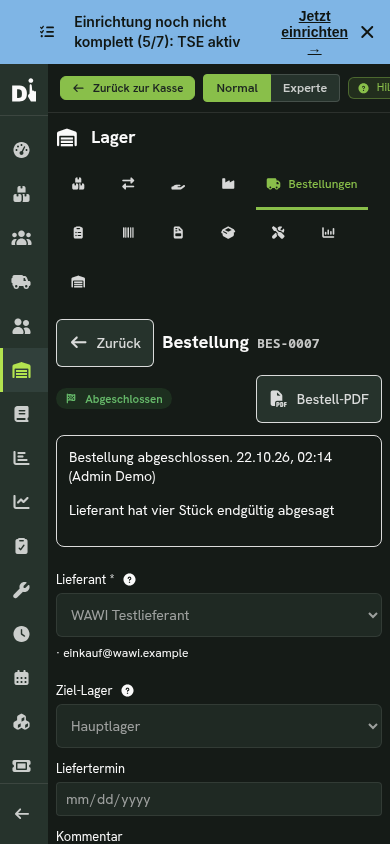
The order is shown as Completed. No further goods are booked in the process. The closure does not confirm an invoice check either; you carry that out in the Purchase review on the basis of the supplier invoice. You return damaged goods there with a return.
The supplier can no longer deliver the remaining quantity
Example: you ordered ten cartons and accepted six. The remaining four cartons will not come.
- Check the delivery status actually confirmed: Ordered 10, Delivered 6.
- Choose "Close purchase order".
- Enter a meaningful closure reason (mandatory for an open remaining quantity, at most 500 characters), for example "Supplier has finally cancelled four cartons, confirmed by phone on 22.10."
- Choose "Confirm closure".
DiKAS keeps the order quantity ten and the delivered quantity six. The stock level remains unchanged. Closure time, responsible person and reason are visible in the order. The four remaining cartons no longer count as on their way. Reload the order proposal: whether and how much has to be reordered now depends on your stock level and the min/target values you have set up.
Do not invent goods to end the order
Do not set Delivered to ten if only six arrived. Use the closure with a reason for the quantity that is not coming. Goods that have already been accepted and then go back to the supplier require a traceable return of their own and, where applicable, a credit note; the order closure takes nothing out of stock.
As long as a goods receipt is open, first complete that operation with "Continue goods receipt". If DiKAS reports a delivery status that has changed in the meantime, reload the order and compare it with your documents again. After a closure, no further new deliveries can be booked for this order.
Practical example: beverage delivery with a shortfall
Ordered were 10 crates of cola, 5 crates of mineral water and 2 crates of rum. Delivered are 10 crates of cola, 5 crates of water and only 1 crate of rum.
- Open the order (status Ordered), Goods receipt section.
- Enter cola
10, water5, rum1in "Accepted now". - According to the invoice, the rum costs €90.00 instead of €84.00 per crate → Purchase price correction
90,00. - Comment: "1 crate of rum missing, subsequent delivery promised".
- Book goods receipt.
Result: the stock level rises by 240 bottles of cola, 60 bottles of water and 12 bottles of rum, and the rum's average purchase price adjusts. The order is at Partially delivered with Remaining 1 — the subsequent delivery is booked on the same order.
When something does not work
| Message | Cause and remedy |
|---|---|
| "Please select a supplier." | An order needs a supplier. |
| "Enter at least one line with a quantity greater than 0." | An empty order is not saved. |
| "No delivery quantity entered — please enter at least one line with a quantity greater than 0." | In goods receipt, everything was 0 – the fields are deliberately empty. Enter quantities or choose "Take over open quantities". If only goods arrived that you do not accept, enter them under "Rejected" with a reason and leave "Accepted now" at 0: DiKAS records the delivery note and the rejection in the purchase history, books nothing into stock and leaves the order open. |
| "The reason for rejected goods is missing." / "More accepted than ordered …" | Rejected goods need a reason, an over-delivery needs a justification. |
| "The purchase order could not be sent" / "No e-mail address is stored for this supplier." | No e-mail is stored at the supplier, or e-mail sending is not set up. Alternatively use "Mark as ordered". |
| "Outcome unclear …", "This order has already been sent to the supplier …", "… no dispatch to the supplier is documented …" | Protection against sending twice — procedure in Sending an order to the supplier. |
| "Minimum order value €250.00 not yet reached (currently €180.00)." | Just a note — the order can still be sent. |
| "No supplier is stored for these articles …" | "Without supplier" group in the proposal: maintain supplier and pack on the article. |
| "No demand — all stock levels are above the minimum." | Either everything is in stock, or min/target rules are missing in the main stock. |
| "Suppliers could not be loaded — server unreachable." | Connection problem; reload the page. |
| "The goods receipt is not yet complete" | Open the order concerned and choose "Continue goods receipt". Only then reload the proposal. |
| "Another delivery has been booked in the meantime" | Reload the order and check the delivery note against the current delivery status. Another person or an earlier attempt has already changed the status. |
| An article is missing from the proposal although the stock level is low | The proposal looks only at the main stock. For counters, replenishment runs via requests. |
Next step
- Returns and purchase review — return goods, credit note and check the supplier invoice
- Stock at the register — how the counter requests replenishment
- Stocktake and reports — evaluate stock value and cost of goods