Overview and Setup
For whom: owner and setup person · Where: Admin → Stock → tab Overview (the first tab)
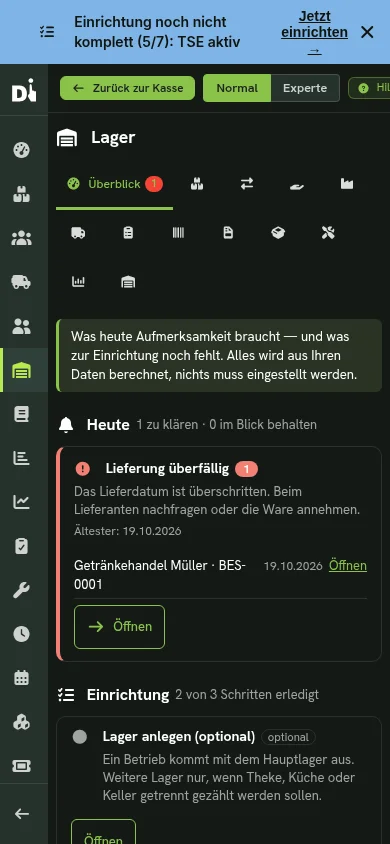
The overview answers two questions: What needs attention today? and What is still missing for setup? It calculates everything from your data — there is nothing to configure, nothing to confirm, and it never opens by itself.
When it speaks up
As soon as something needs resolving, a red number appears on the Overview tab. You also see it while working in another stock tab.
Today: what needs attention
Each note states how many processes are affected, since when (the oldest) and takes you with Open straight to where you resolve it. Red with an exclamation mark is what you should resolve now; grey is what you should keep an eye on.
| Note | What it means | What to do |
|---|---|---|
| Negative stock (red) | More was consumed than was booked in | Add the goods receipt or correct with a stocktake |
| Goods receipt started, not finished (red) | The goods are partly booked, the process stopped | Open takes you into the order; continue there |
| Production started (red) | Ingredients or finished goods are not completely booked yet | Continue in the Production tab |
| Stock booking started (red) | The stock has only partly moved | Continue or discard in the Requests tab |
| Deduction not completed (red) | A sale was not fully deducted from stock, or the serial numbers did not follow | Re-book or discard it in the Bookings tab under Open deductions (Missing deductions) |
| Delivery overdue (red) | The order's delivery date has passed | Ask the supplier or accept the goods |
| Check master data (red) | An article lacks a unit, or a recipe ingredient no longer exists | Correct it in the article |
| Below minimum stock | The article is running low | The Orders tab suggests quantities |
| Open requests | Replenishment is requested but not yet confirmed | Stock is booked only on confirmation |
| Stocktake open | Counting is in progress | Finish it; until then do not sell or move goods in that stock |
| Orders on the way | Ordered, not (completely) delivered yet | Accept on arrival in the Orders tab |
| Order drafts waiting for release | An order is created but not sent | Check it and release it explicitly for sending |
| Delivery notes not issued | Draft or packed, but not issued yet | Issue in the Delivery notes tab (merchandise management only) |
Check recipes
Below the Today box, the list Check recipes appears as soon as there is something to show. It lists all articles whose recipe cannot be fully resolved (unlike the Check master data card, which shows only the first eight), with the reason for each row: an ingredient is missing or was deleted, the recipe refers back to itself, is nested too deeply, the unit does not fit, or the quantity is zero. The article whose recipe contains the faulty row is listed; a recipe above it that merely depends on it does not appear additionally. Inactive articles are listed at the bottom and marked. Open takes you to the articles; correct the recipe there. A sale with a broken recipe is not deducted but held under Missing deductions. The list is empty when all recipes are fine.
Old, started processes stay findable
The booking journal shows only the last 50 entries. A goods receipt started weeks ago would long be gone from it. The overview searches by state, not by age: as long as a process is open it is listed here — with its oldest date and an Open that leads to it.
Drafts are never sent automatically
Neither the order proposal nor a request sends anything. An order goes to the supplier only when you open it, check it and press Send to supplier by e-mail (or Mark as ordered). Until then it stands here as "Order drafts waiting for release".
Setup: the short list
Below Today is the list of setup steps with progress in words ("2 of 3 steps done"). Only the required steps count; optional ones are listed but are no shortcoming. Everything is derived from your data: if you already have articles, suppliers and stock — also from a takeover from an old system — you see the steps as done by themselves.
| Step | Required? | How to complete it |
|---|---|---|
| Create a stock location | optional | A business gets by with the main stock. More only if counter, kitchen or cellar are counted separately — Setting up stock |
| Create a default supplier | yes | Admin → Suppliers → New supplier, name and e-mail are enough |
| Keep stock for articles | yes | Switch on "Keep stock" in the article and check the unit — or many at once via the article import |
| Add recipes | optional | In the article under Stock → Recipe enter the ingredients with quantities — Recipes |
| Assign workplaces to a stock | optional | Admin → Settings → Workstations — so the counter books its own stock |
| Give staff stock permissions | optional | Admin → Staff → Permissions — for service See availability only, for the counter Record waste and own consumption (Permissions) |
| Book the opening stock | yes | Record the goods you have once as goods receipt or via a stocktake — Ordering and goods receipt — or import many opening stocks at once (Setting up stock) |
| Make a test sale | optional | Sell an article at the register and check in the stock that it decreases by the right quantity |
A serial numbers note appears only if you actually keep articles with serial numbers; the merchandise-management tabs for shipping appear only with the module.
A small business in one hour
This is how a business with about 20 purchased articles and 5 dishes gets going without help:
- Create a supplier (name, e-mail).
- Import articles: upload a table with article number, name, unit, stock keeping = yes, minimum and target stock.
- Create the dishes as articles and enter the ingredients with quantities under Stock → Recipe — without "Keep stock" on the dish itself: then the sale resolves the recipe into the ingredients.
- Order: tab Orders → New order, choose supplier and items, Save — it stays a draft. Only Mark as ordered (or sending by e-mail) turns it into an order.
- Accept the goods: in the order, Book goods receipt. If only part arrives, enter the actual quantity under Delivered now; the rest stays open and the overview reminds you until it is delivered or closed.
- Trace consumption: after a dish is sold, the booking journal shows the quantity consumed per ingredient, and the stock shows the new remaining quantity.
When something does not work
| Observation | Cause | What to do |
|---|---|---|
| The Overview tab is missing | The View stock permission is missing | Grant it under Admin → Staff → Permissions |
| "All good", although a delivery is missing | The order is still a draft or has no delivery date | Mark the order as ordered and enter a delivery date |
| The "test sale" step stays open | It only counts sales since the last stocktake | Optional — can be ignored |
| The number on the tab stays | The page shows the state from when it was opened | Reopen the Overview tab |